How-to
Passkey UX: how to design sign-in people trust
How to design passkey sign-in people trust: when to offer a passkey, what to call it, autofill on the email field, and what to do when a phone is lost.
· 12 min read · Musab Alfawal
On this page
A passkey lets people sign in with the fingerprint, face or screen lock they already use on their phone or laptop, instead of a password. There is nothing to remember and nothing to type. Behind the scenes it is a pair of keys: one stays with the person, in their device or password manager, and your service keeps the other. A passkey only works on the site it was made for, so it can’t be handed over to a fake one, and the person’s fingerprint or face never leaves their device.
Passkeys are now built into Apple, Google and Microsoft devices and the main password managers, and they sync between a person’s devices. Microsoft made new accounts passwordless by default in May 2025. The FIDO Alliance’s Passkey Index for 2026, drawn from 15 consumer services, found that passkeys made up 36% of successful sign-ins, up from 26% a year earlier, and that passkey sign-ins succeeded 93% of the time, against 78% for traditional multi-factor sign-in.
The technology works. Whether people use it, and trust it, depends on the design around it: when you offer one, what you call it, and what happens when someone loses their phone. This guide works through each, using a made-up grocery delivery service, Kettlecress, as the example.
Offer a passkey after sign-in, not before it
The best moment to offer a passkey is just after someone has signed in, or as they create an account. They have just proved who they are, and nothing stands between them and what they came to do. Google’s guidance adds three more good moments: in security settings, after account recovery, and when someone confirms who they are before a sensitive change.
Don’t make it a wall. A screen that demands a passkey before someone can reach their basket turns a convenience into an obstacle, and people who don’t understand the request will leave or call support. The FIDO Alliance’s design guidelines, based on usability research, make the same point: people see a passkey as a welcome extra while they are managing their account, and as an interruption in the middle of a task such as shopping.
Give people a real choice. A clear Create a passkey button, a Not now beside it, and the same offer waiting in account settings for later. If they say no, leave it for a while rather than asking at every sign-in.
Here is the same offer made two ways. The first stops people at the door with the names of standards. The second waits until they are in, and says what they will do.
Before
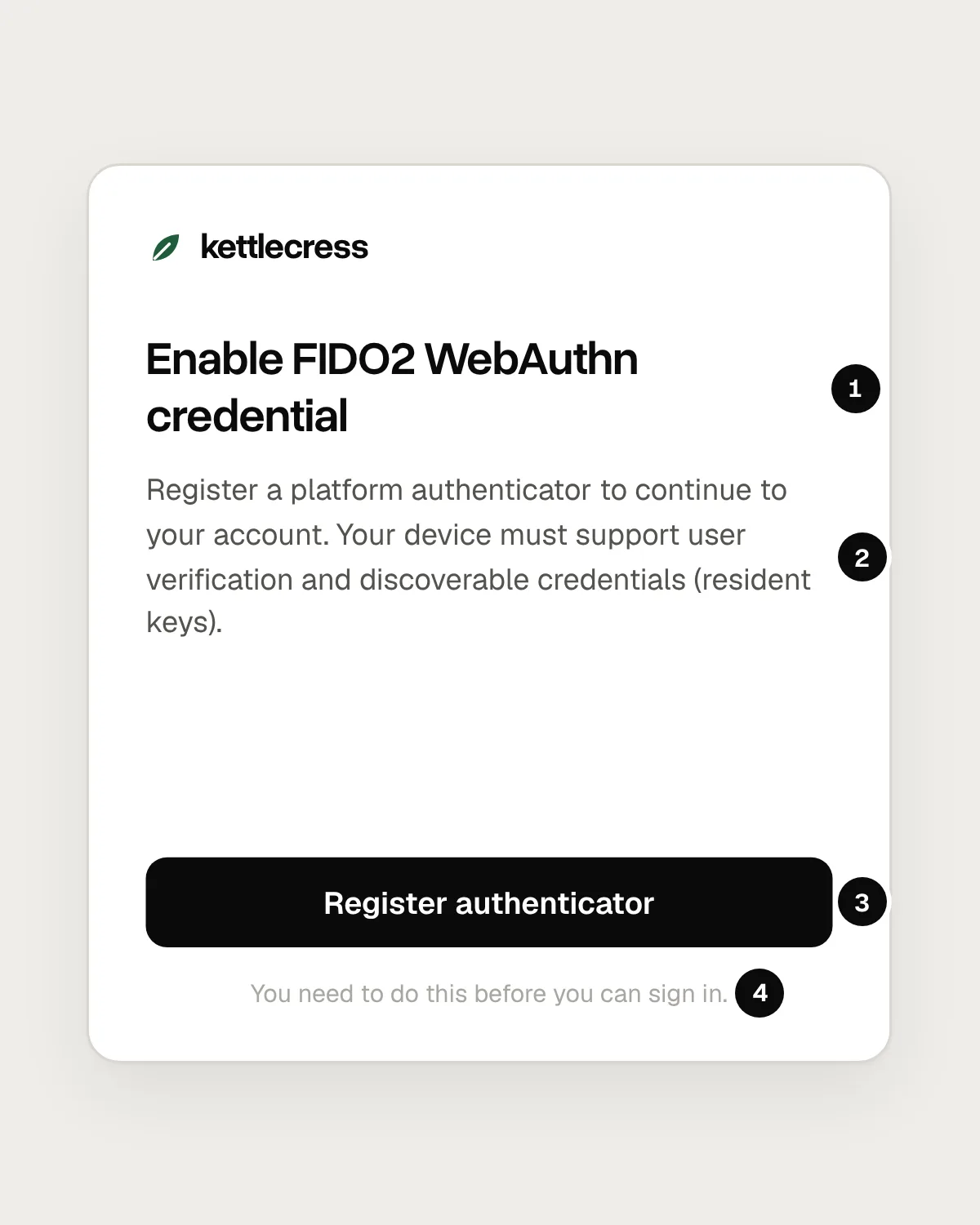
- Jargon in the heading. FIDO2, WebAuthn and credential mean nothing to most people.
- It never says what the person will do, or what they get out of it.
- A button that names the technology, not the action.
- A wall, with no way past it and no other way to sign in. The order waits.
After
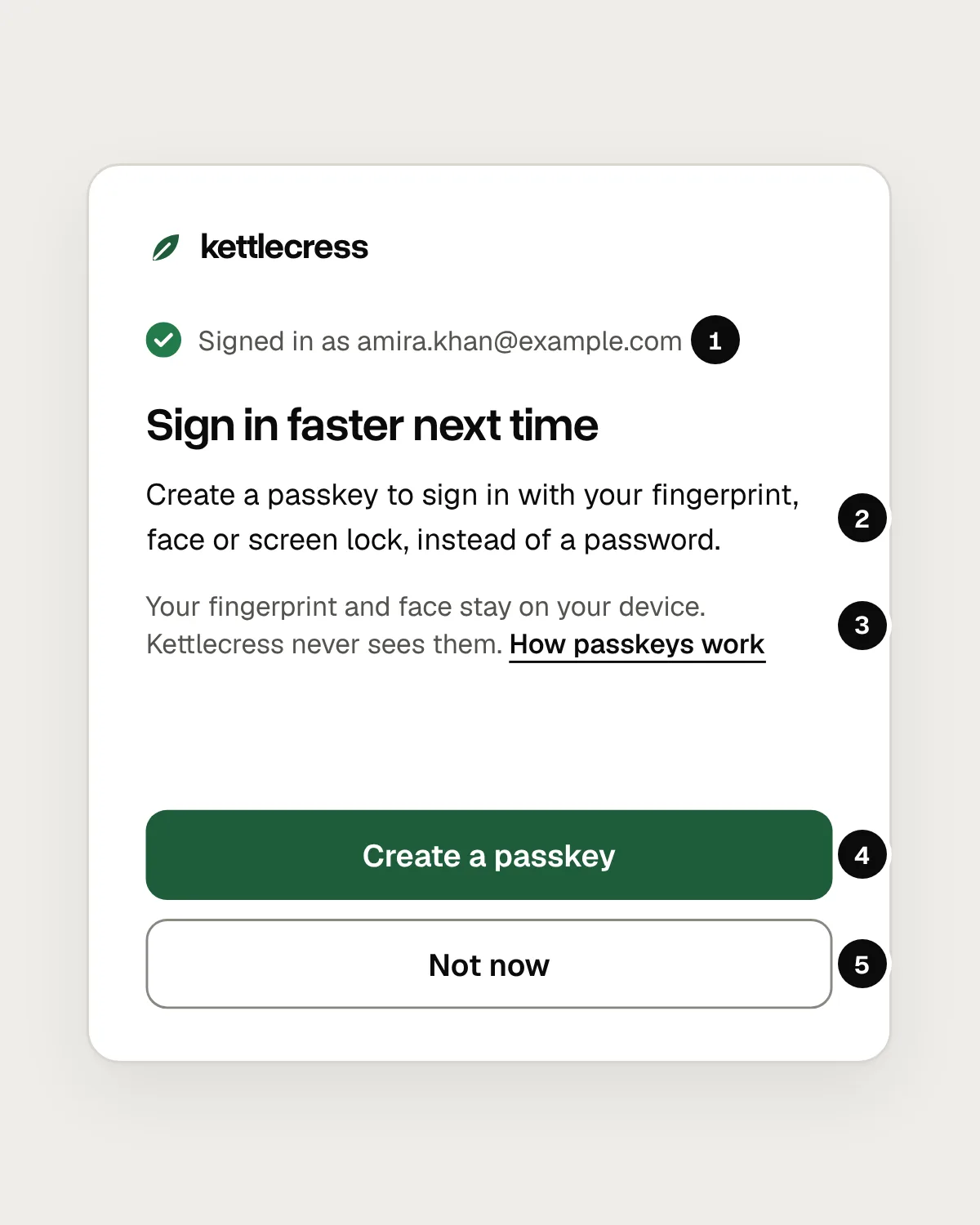
- It comes after a successful sign-in, so nothing stands between the person and their account.
- It says what they will do, in words they already know.
- It answers a common worry: fingerprints and faces stay on the device. A link explains more.
- The button names the action.
- Not now is as easy to find as yes.
Let the email field offer the passkey
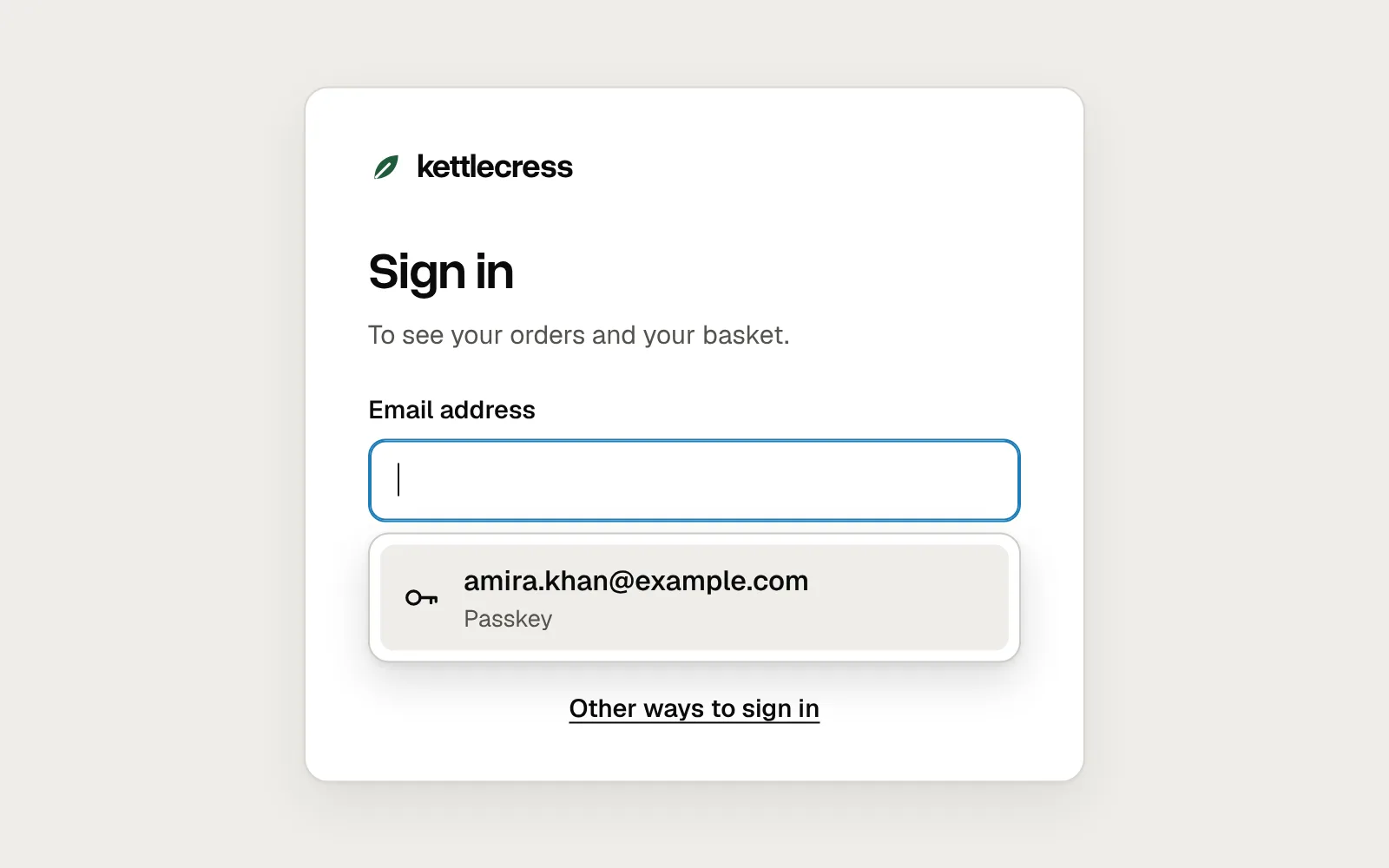
Returning people shouldn’t have to find a separate passkey button. Browsers can show saved passkeys in the same autofill list as saved passwords, right under the email or username field. The person taps the field, picks their account, confirms with their fingerprint, face or screen lock, and they’re in.
This is called conditional mediation, or conditional UI. On the web, you add webauthn to the field’s autocomplete value, after username, and start a passkey request when the page loads. The request waits quietly until the person picks a passkey from the list. Current versions of Chrome, Edge, Safari and Firefox support it, and people without a passkey simply see an ordinary email field.
Keep the rest of the form as it was. Anyone who types their email and presses Continue still gets the usual next step, whether that is a password, a code or a passkey prompt.
Here is a returning Kettlecress customer signing in this way: the email field, the passkey in the autofill list, the device’s own prompt, and their account.
Say what people will do, not what it’s called
Most people don’t know what FIDO2, WebAuthn, an authenticator or a credential is, and they shouldn’t need to. Describe the action and the benefit in words they already use: “Sign in with your fingerprint, face or screen lock.” Google’s own example copy says much the same, and the phrase covers everyone, including people whose phone has no fingerprint reader and people who prefer a PIN.
Do use the word passkey, though. The big platforms all use it, so people are starting to recognise it, and naming it lets them spot the same thing on the next site. Google recommends including the term without making it the focus. Put it on the button, Create a passkey, and explain it in the sentence beside it.
Answer the worry before it is asked. Some people will assume your site keeps a copy of their fingerprint or a picture of their face. It doesn’t: the check happens on their device, and your service never receives it. One short line saying so does a lot of work.
Confirm it, and say where it’s saved
Creating a passkey happens in a prompt drawn by the device, not by you, and it closes in a second or two. Without a message afterwards, people can’t be sure anything happened. The FIDO Alliance recommends clear words before the device’s prompt and a confirmation after it.
Make the confirmation useful. Say it worked, say how to sign in next time, and say where the passkey was saved, because that decides where it will work. A passkey saved in iCloud Keychain works on the person’s other Apple devices. One saved in Google Password Manager, or in a password manager such as 1Password, works wherever they use that. Your site can tell which provider saved it from a code the passkey carries, called the AAGUID, matched against a list the community maintains.
Plan for the first sign-in on a new device
Passkeys sync within one provider, not across all of them. Someone whose passkey lives on their iPhone may sit down at a Windows laptop at work where it isn’t available. The browser can still help: it offers to use a phone instead, shows a QR code, and the person scans it and confirms on their phone. Bluetooth needs to be on for both devices, because it checks that the phone is nearby.
Once they’re in, offer a passkey for this device too, so next time they don’t need the phone. Google’s passkey deployment checklist recommends exactly this after a sign-in from another device.
Moving between providers is getting easier. The FIDO Alliance’s Credential Exchange standard lets one password manager pass passkeys to another without an unprotected export file. Apple added it in iOS 26 and macOS 26, and Google began rolling it out for Google Password Manager on Android in 2026. Support is still spreading, so don’t build your recovery plans on it.
Keep another way in
A passkey should be a faster way in, not the only one. People sign in from a shared family laptop, a library computer, or a new phone that hasn’t finished syncing. If the passkey is the only door, every one of those becomes a support call.
When a passkey sign-in fails, the browser usually doesn’t tell your site why, for privacy. The person may have cancelled, or there may be no passkey for your site on this device. Write one message that works for both: say you couldn’t sign them in with a passkey, suggest it may be on another device, and offer a way in that doesn’t need it, such as a code sent by email.
Don’t remove someone’s password the moment they create a passkey. Let them choose to, later, from account settings, once they are used to signing in without it.
Make recovery as careful as sign-in
Losing a phone usually doesn’t mean losing a passkey. Most passkeys are synced by the person’s password manager, so when they sign in to the same Apple, Google or password manager account on a new phone, their passkeys come back. A passkey on a hardware security key is different: it lives only on the key, and if the key is lost, so is the passkey.
Your recovery route still matters, because it is the way in for everyone who can’t use their passkey, including anyone trying to break in. Match it to what the account protects. For a grocery account, a code sent to the email address on file is reasonable. For a bank, use the checks you already trust for a forgotten password, and tell the customer by email when a new passkey is added, so they notice if it wasn’t them.
After recovery, offer a new passkey on the device they’re using, and show the passkeys list so they can remove the ones they no longer have. The FIDO Alliance’s guidelines and Google’s guidance both treat the moment after recovery as a good time to offer one.
Give passkeys a page in account settings
People need one place to see their passkeys, add another and remove one they no longer trust. The FIDO Alliance suggests putting it in account settings, above passwords, with each passkey listed separately and a way to remove it. If someone has none, the top of that page is a good place to offer one.
Name each passkey after the provider that saved it, such as iCloud Keychain or Google Password Manager, not “Credential 1”. Show when it was created and when it was last used, as Google’s guidance on managing passkeys recommends, so people can spot the one on the phone they sold last year. Let them rename it, too.
Removing a passkey here stops it working on your site, but the copy in the person’s password manager stays until they delete it there. Say so in the confirmation. In browsers that support the WebAuthn Signal API, such as Chrome and Safari, your site can also ask the password manager to hide it.
Adding passkeys to an existing sign-in, step by step
1. Turn on passkey autofill in the email field
Add webauthn to the field’s autocomplete value, after username, and start a conditional passkey request when the page loads. Returning people with a passkey see it in the autofill list. Everyone else types as usual.
2. Offer a passkey after a successful sign-in
Show a short prompt once the person is in: one sentence on what a passkey is, a Create a passkey button and a Not now. If they say no, leave it for a while.
3. Hand over to the device, then confirm
Your button opens the device’s own prompt. When it returns, say the passkey was created, how to sign in next time and which password manager saved it.
4. List passkeys in account settings
Name each one by its provider, show when it was created and last used, and let people rename or remove it, or create another.
5. Keep a way in that doesn’t need the passkey
A code by email, a recovery code or a password, matched to what the account protects. After someone uses it, offer a new passkey on the device they’re using.
6. Test it on the devices people really use
Sign in on a phone, on a laptop with no passkey on it, and after deleting a passkey from the password manager. Then watch a few customers do it, and note where they hesitate.
Mistakes, and what to do instead
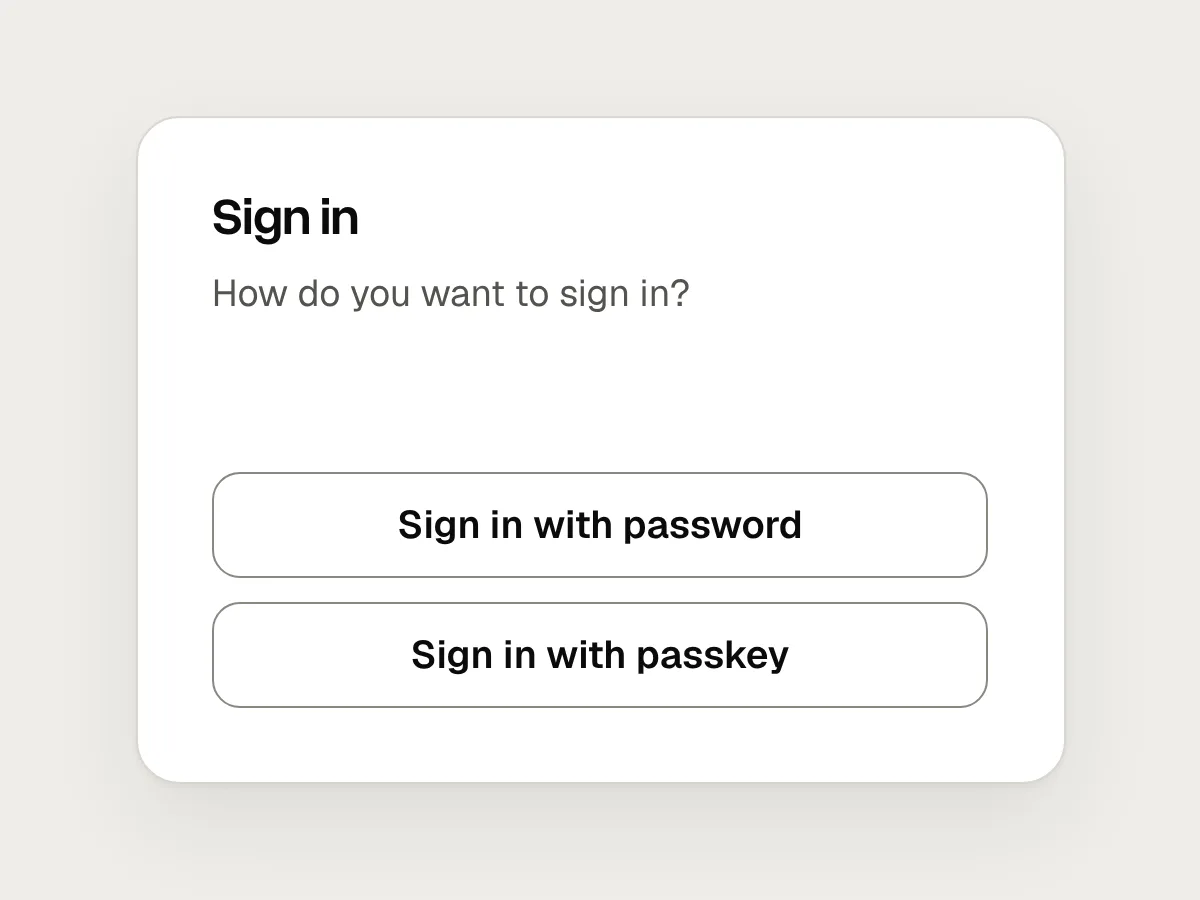
Don’t
Asking people to choose “password” or “passkey” before they’ve typed anything.
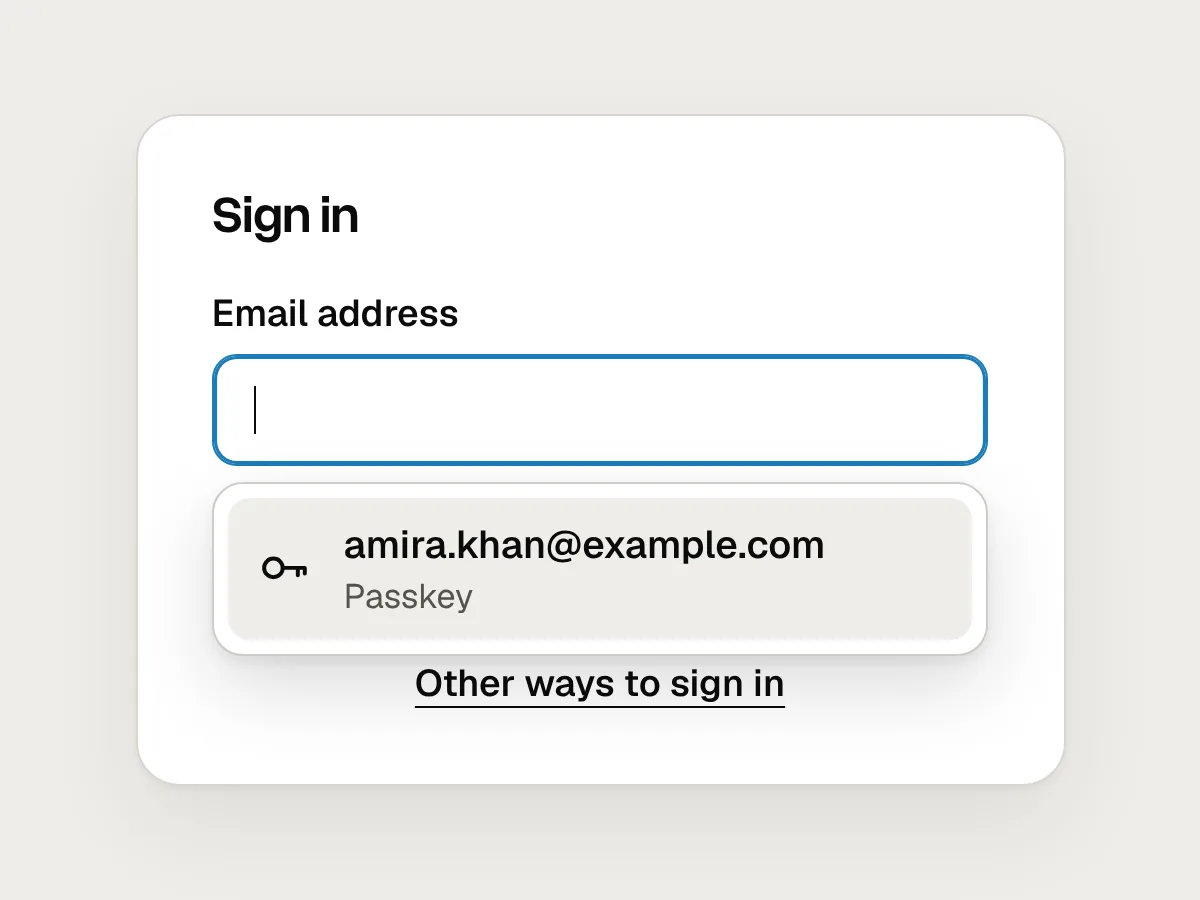
Do
Let the email field’s autofill offer the passkey, and keep other ways to sign in below.
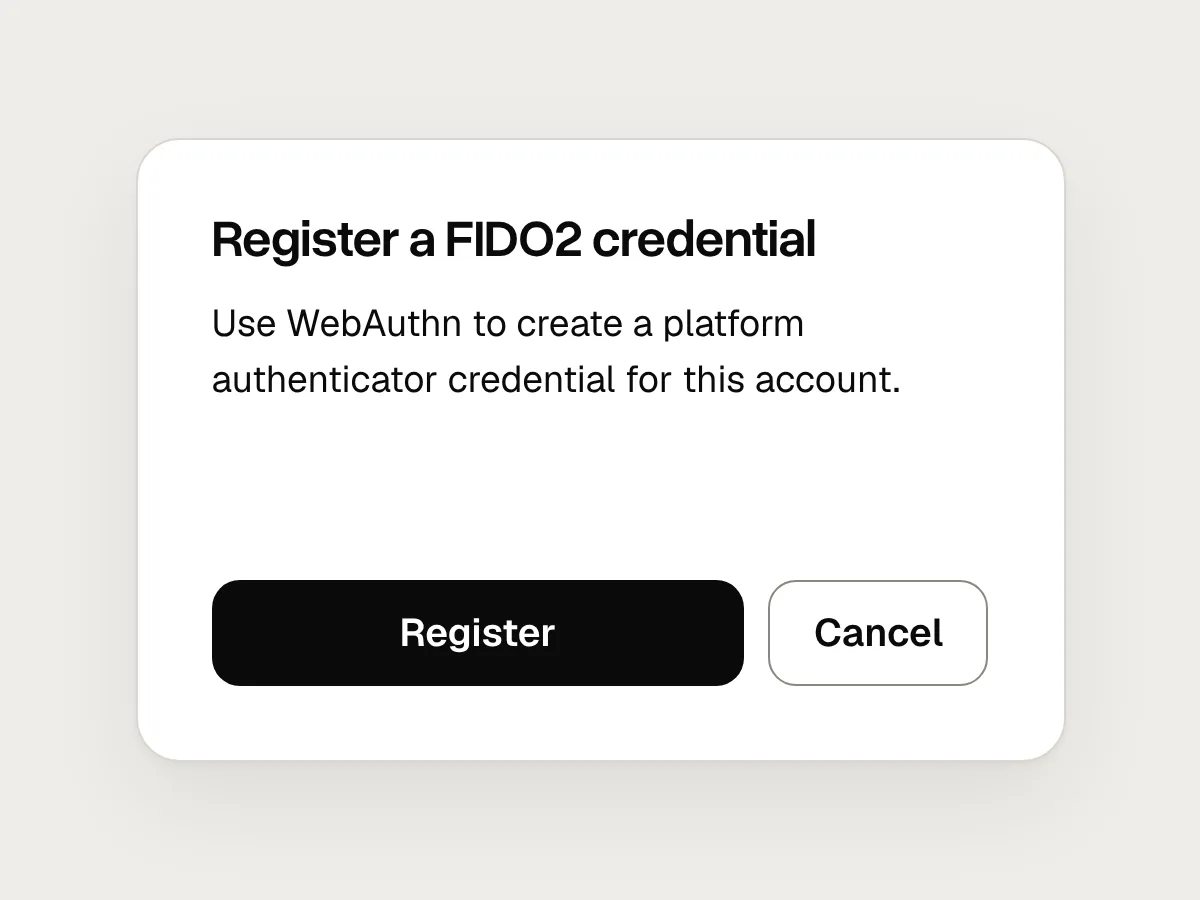
Don’t
Jargon: “Register a FIDO2 credential.”
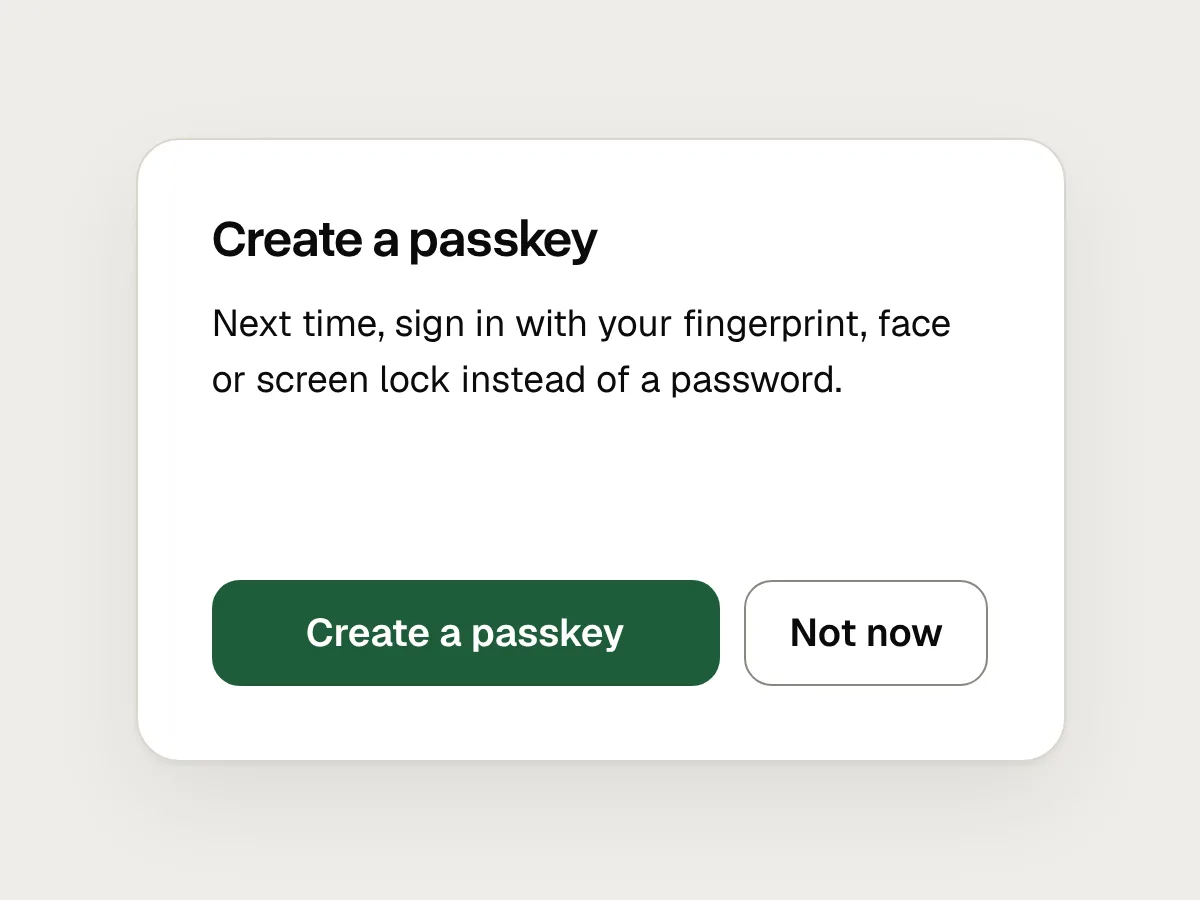
Do
Say what people will do: “Sign in with your fingerprint, face or screen lock.”
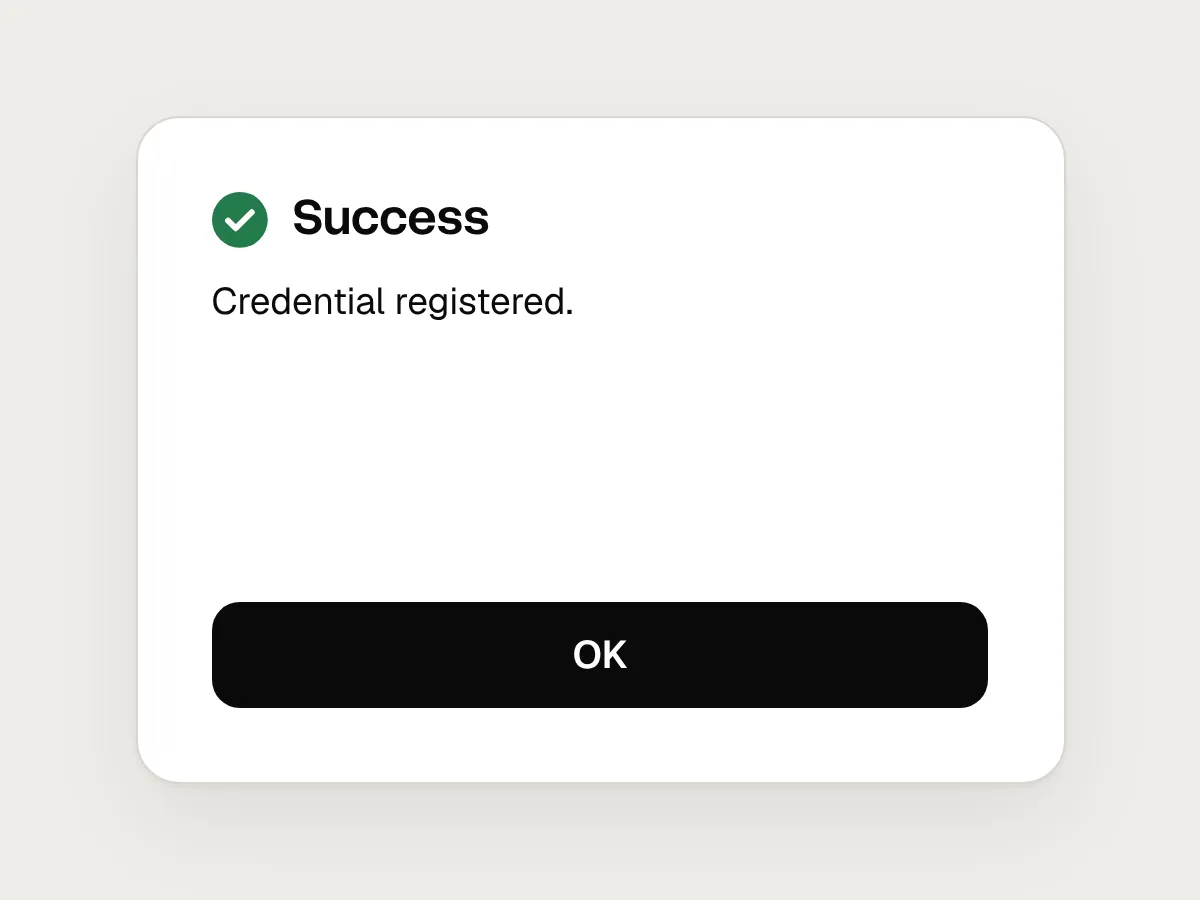
Don’t
“Success. Credential registered.” and nothing else.
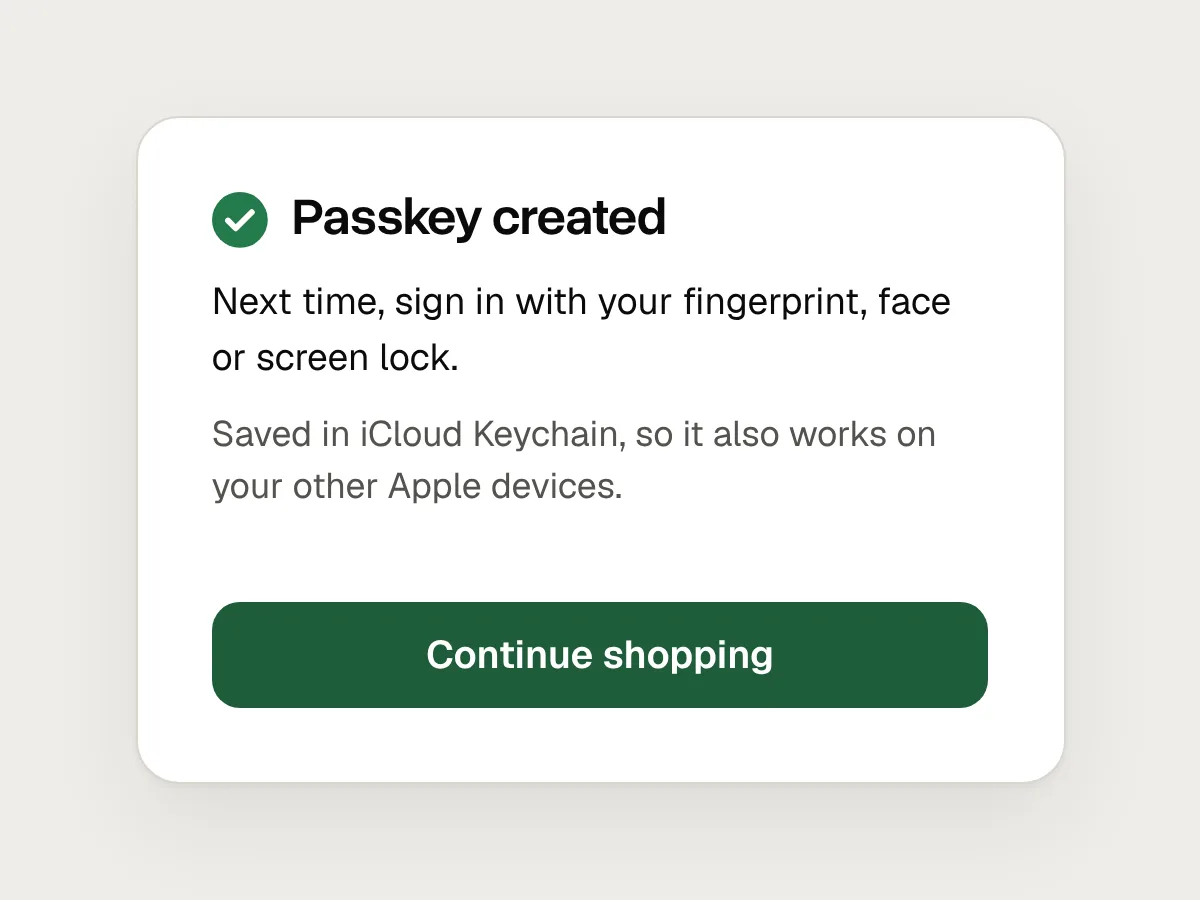
Do
Confirm the passkey, and say how to use it next time and where it’s saved.
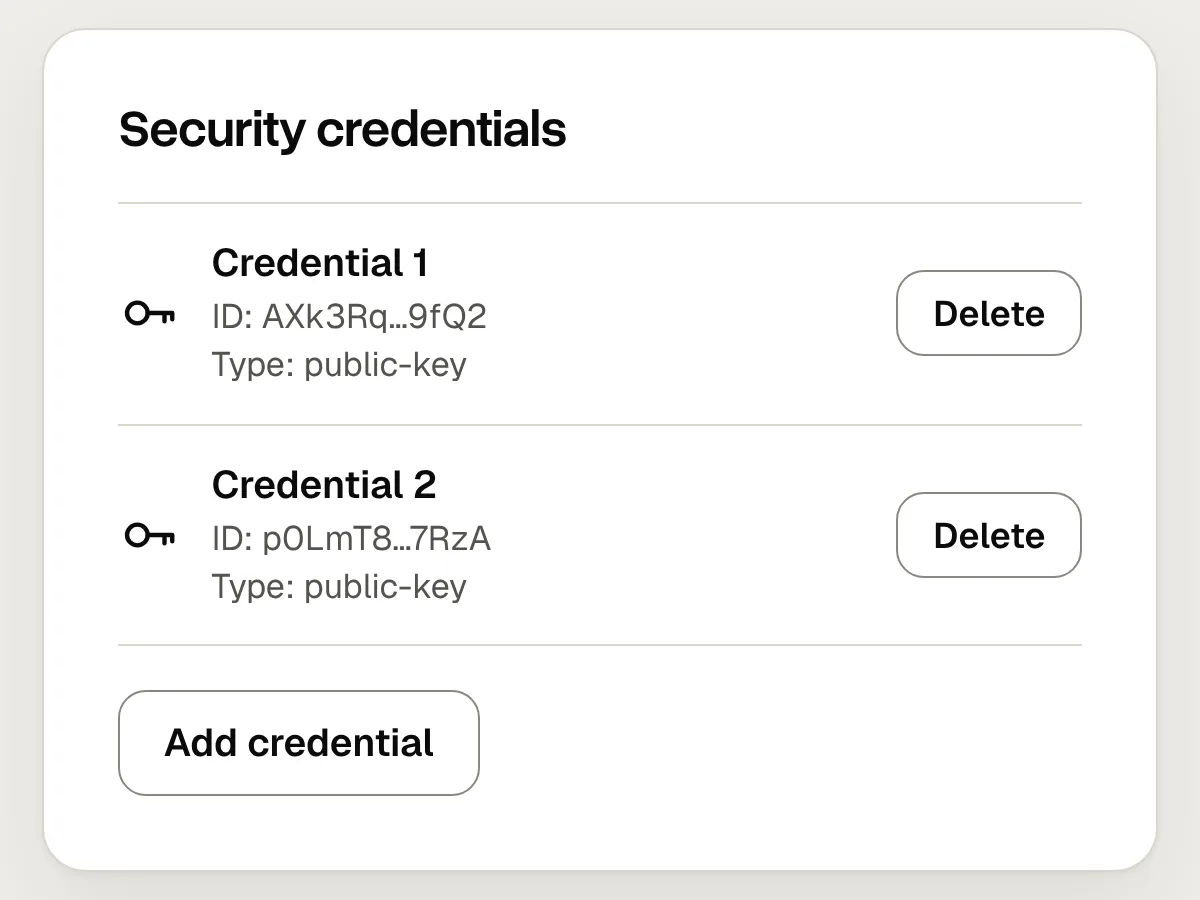
Don’t
A list of anonymous credentials that nobody can match to a device.
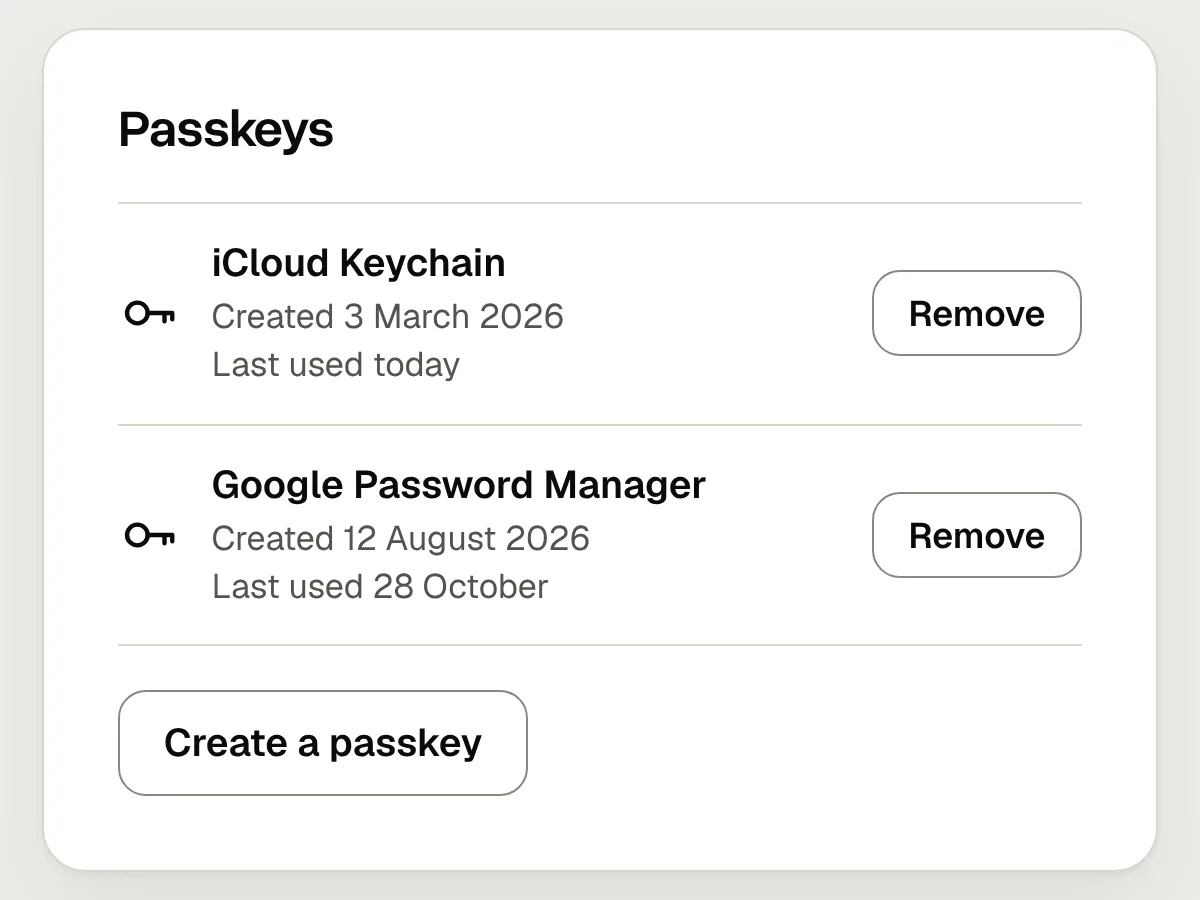
Do
Name each passkey after its provider, show when it was created and last used, and let people remove it.
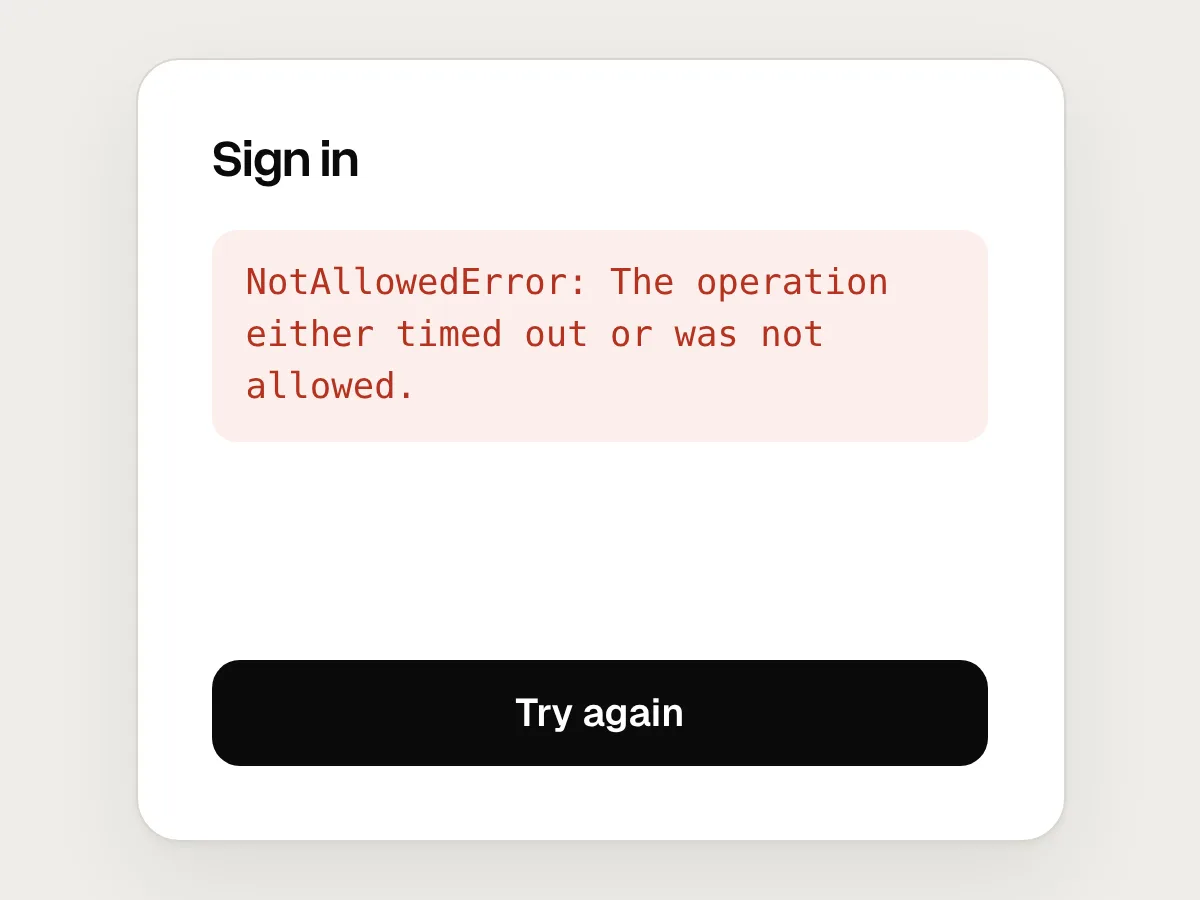
Don’t
Showing the browser’s raw error when a passkey sign-in fails.
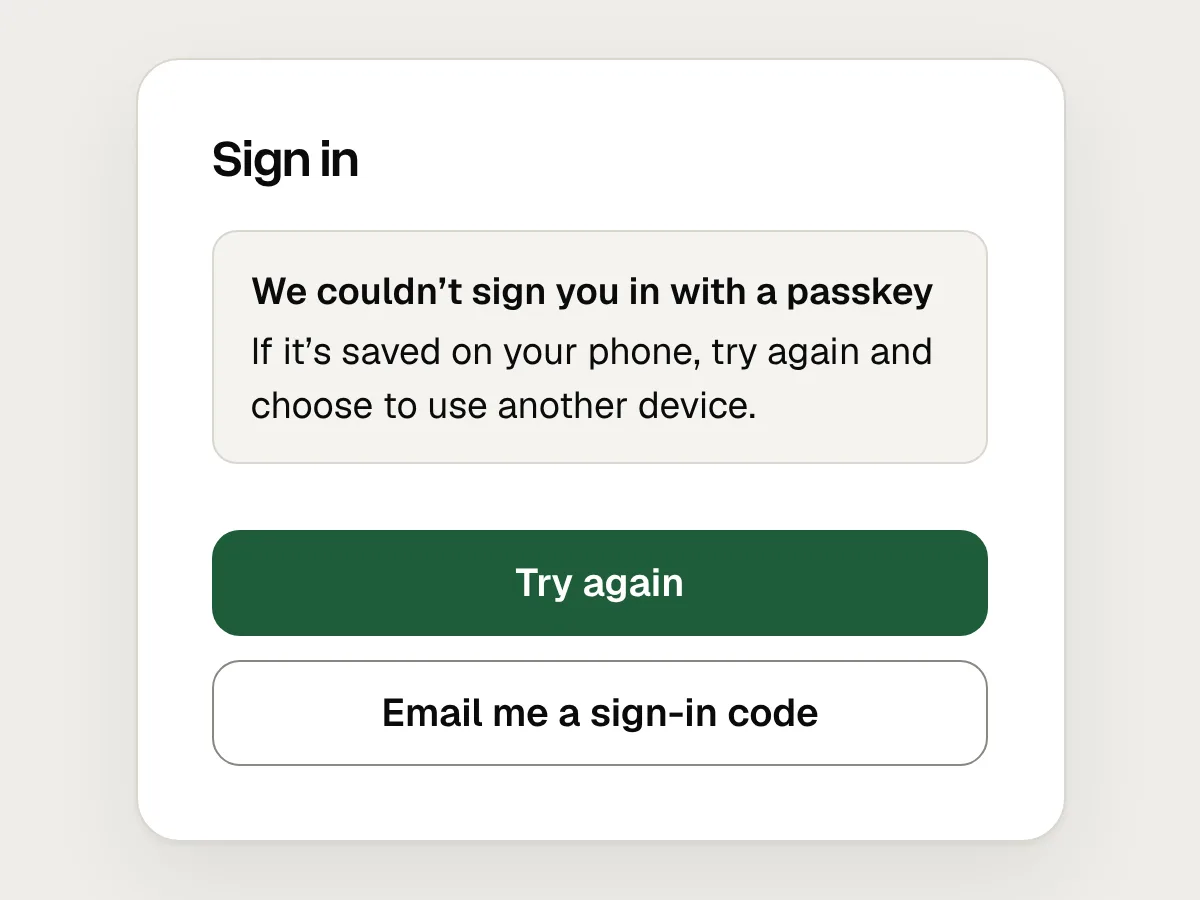
Do
Say the passkey may be on another device, and offer another way in.
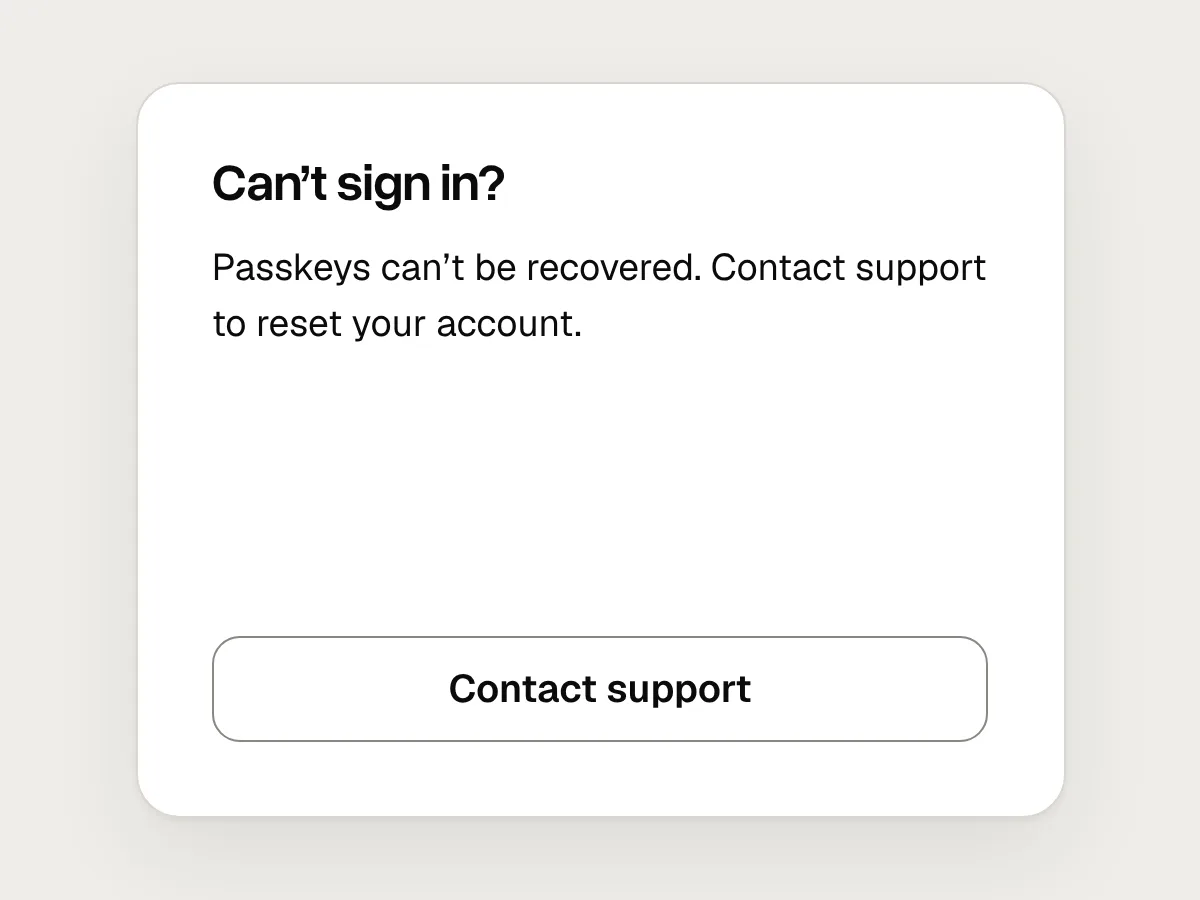
Don’t
A recovery page that ends at “Contact support”.
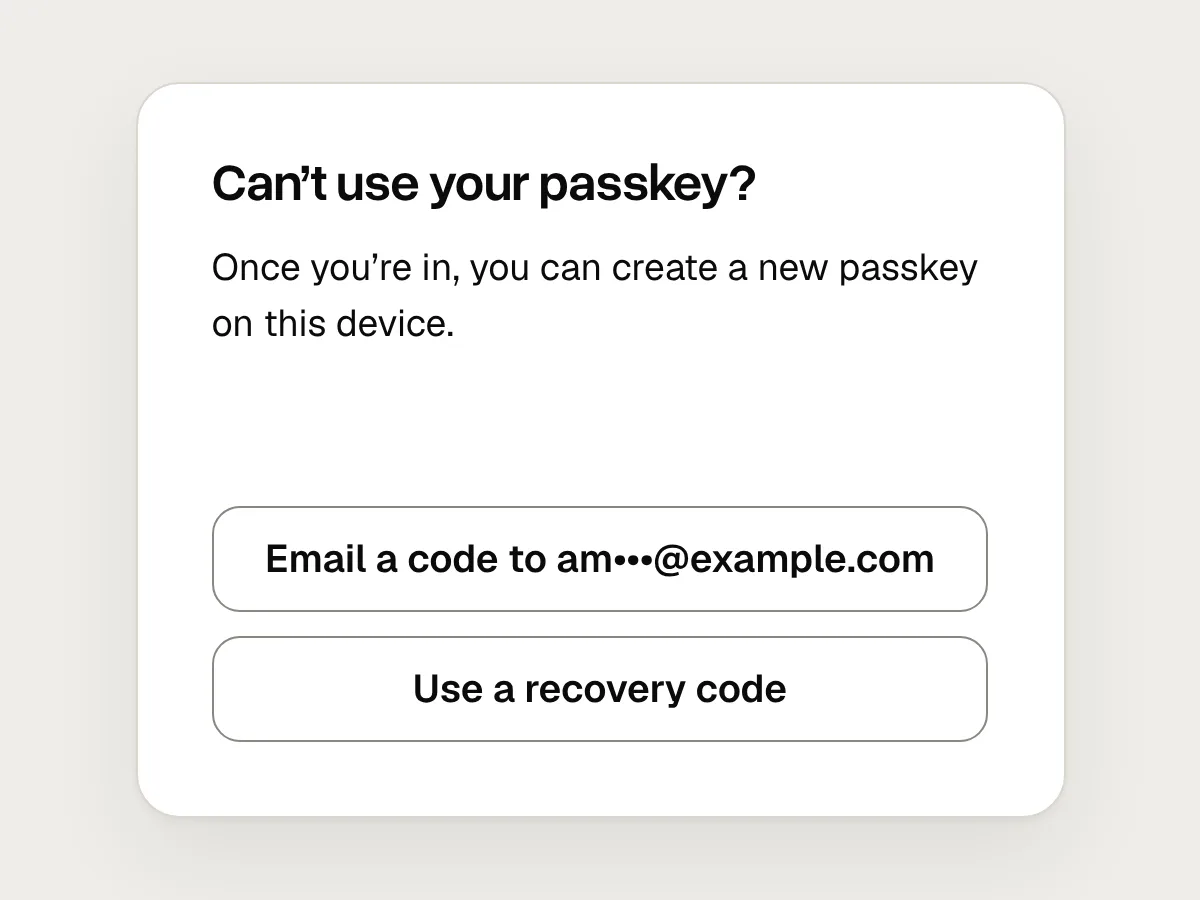
Do
Offer a way back in that fits the account, then a new passkey on the device they’re using.
Before you ship: a checklist
Questions people ask
What is a passkey, in simple terms?
A way to sign in without a password. You confirm it’s you with the fingerprint, face or screen lock you already use on your phone or computer. The passkey is kept by your device or password manager, works only on the site it was made for, and your fingerprint or face never leaves the device.
What happens to someone’s passkeys if they lose their phone?
If their password manager synced the passkey, as iCloud Keychain and Google Password Manager do, it comes back when they sign in to that account on a new phone. If it was on a hardware security key, or they can’t get back into their password manager, they need your recovery route, so keep one.
Should I call it a passkey?
Yes. Use the word, in lower case like password, but explain it by what people do: sign in with their fingerprint, face or screen lock. The word helps people recognise it from site to site. The explanation tells them what will happen.
Should I remove passwords once someone has a passkey?
Not straight away. Let people remove their password from account settings once they are used to signing in without it. A service that starts without passwords still needs another way in, such as a code sent by email.
Can people move passkeys between Apple, Google and other password managers?
Increasingly, yes. The FIDO Alliance’s Credential Exchange standard lets password managers pass passkeys to each other securely. Apple supports it from iOS 26 and macOS 26, and Google began rolling it out on Android in 2026. Support still varies, so don’t depend on it for recovery.
Resources
- Design Guidelines · FIDO Alliance
Researched patterns for creating, using and managing passkeys, with UI kits.
- Passkeys user journeys · Google for Developers
When to offer a passkey: at sign-in, in settings and after recovery.
- Communicating passkeys to users · Google for Developers
How to describe passkeys in plain words, with example copy.
- Sign in with a passkey through form autofill · web.dev
How to offer passkeys in the email field’s autofill list.
- Help users manage passkeys effectively · web.dev
Naming passkeys by provider, and what to show in a passkeys list.
- What’s new in passkeys · Apple WWDC25
Account creation, automatic upgrades and moving passkeys between apps on Apple platforms.
If this was useful, share it with someone it would help.