Best practice
Showing what an AI agent is doing: plans, progress and results
How to show an AI agent’s plan, progress and results, so people know what it’s doing, can leave it running and can check its work afterwards.
· 6 min read · Musab Alfawal
On this page
An AI agent can take anything from a few seconds to many minutes to finish a task. For most of that time, the person isn’t watching. They glance at it, do something else, and come back to see whether it worked.
That makes an agent’s status a design problem of its own. A loading state on an ordinary screen covers a few seconds of waiting for a result you already know the shape of. An agent’s status has to say what it plans to do, how far it has got, what it has found and what it did, to someone who may only look at it twice.
Why a spinner isn’t enough
Jakob Nielsen’s response-time limits give a rough guide. Up to about a second, people stay with the task. Up to about ten seconds, they keep their attention on the screen. Beyond that, they start doing something else and need to know when to come back.
Most agent tasks go well past ten seconds. A spinner and the word “Thinking…” tell someone that something is happening, but not what, how far it has got, or whether it has gone wrong. After a minute of it, people start to wonder whether to cancel.
Here is the same task shown two ways, three and a half minutes in.
Before
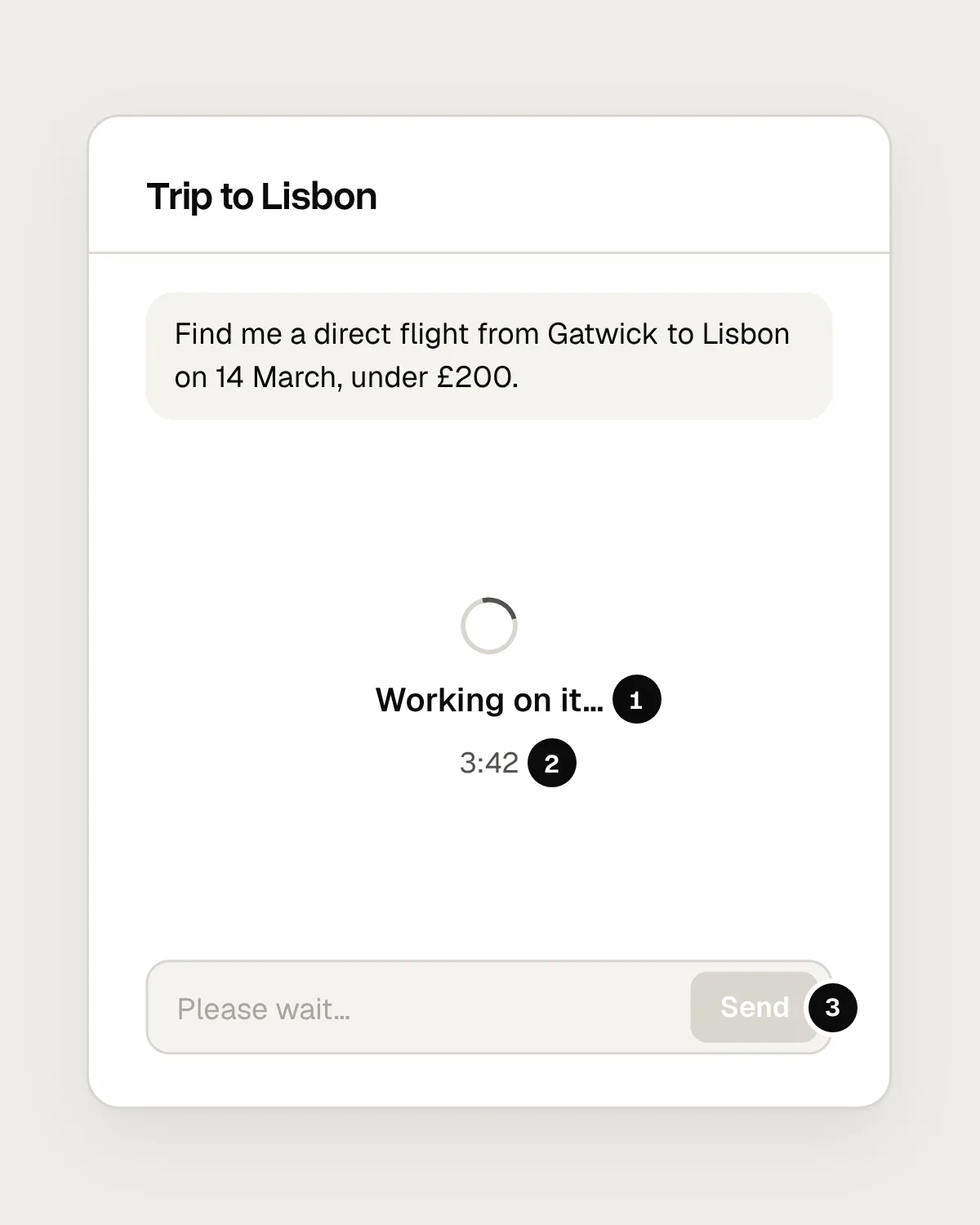
- Nothing says what the agent is doing.
- No sense of how far it has got, or how much is left.
- No way to stop it, and no sign that it’s safe to leave.
After
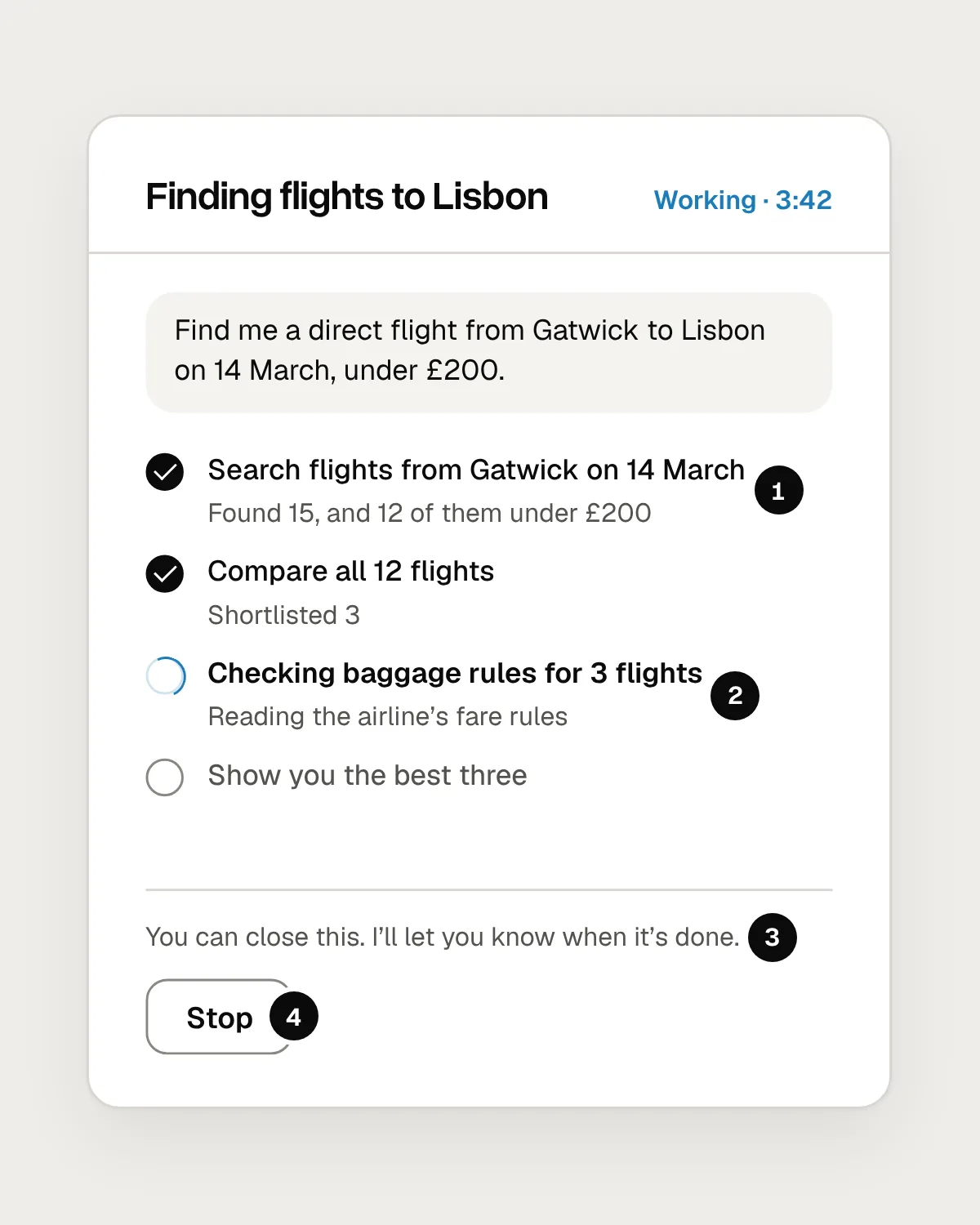
- The plan in plain words, with each finished step’s result.
- The current step, and what it is looking at.
- Permission to leave, and a promise to say when it’s done.
- A Stop button, on screen the whole time.
Before: show the plan
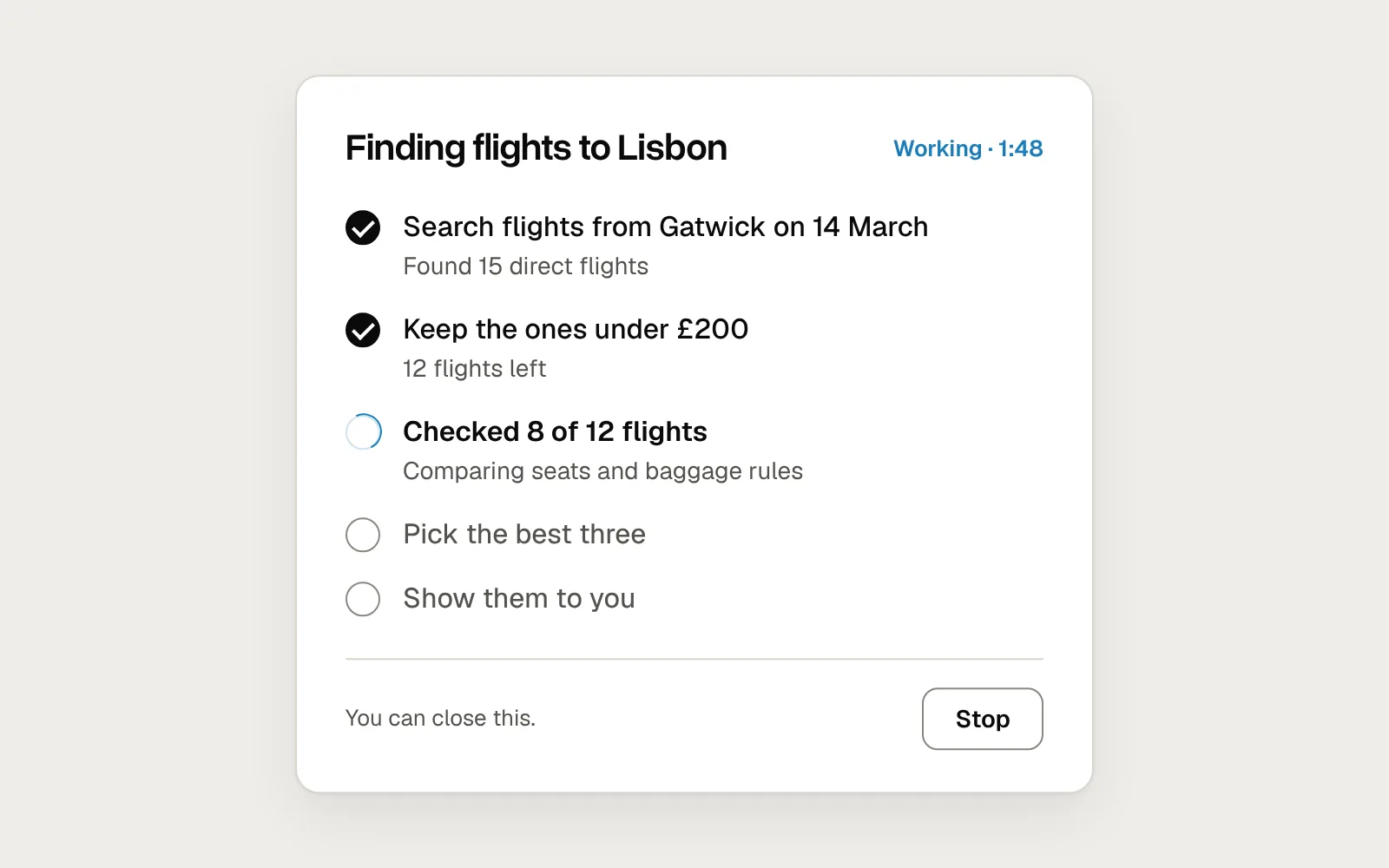
For a task of more than a few steps, show what the agent intends to do before it starts. Keep it short, three to six steps, each a plain sentence about what the person gets: “Search flights from Gatwick on 14 March”.
Let people change the plan before it runs. Collect the questions the agent will need answered, such as which card to pay with, before it starts too, so the rest can run without anyone watching.
During: show where it is
Mark the step the agent is on and say what it is doing, in the person’s terms. “Comparing 12 flights” helps. “Calling search_flights” doesn’t, however accurate it is.
Count real things. An agent rarely knows how long a task will take, so a percentage bar is usually a guess, and a bar stuck at 99 percent does more harm than no bar at all. “Checked 8 of 12 flights” is true, and it moves.
Show results as they arrive. When a step finishes, put its result under it in a line: “Found 12 direct flights under £200.” Someone who glances at the screen then sees progress, not just activity.
When the plan changes, say so. Agents change course for good reasons: a flight sells out, a page won’t load. A line such as “The 09:40 sold out, so I’m checking later flights” keeps the person’s picture of the task in step with what is really happening.
Keep the detail one tap away. Some people want to see every page the agent opened and every search it ran. Put that in an activity log under each step, not in the main view.
Here is a short task from start to finish: steps ticking off, a count rising, a change of plan, and the result.
When it needs the person
Sometimes the agent can’t carry on without an answer: a choice between two flights, a missing detail, an approval to pay. Make that moment hard to miss. Put the question at the top of the task, change the task’s status to say it’s waiting, and if the person has left, send a notification that contains the question itself.
If the person can answer from the notification, even better. And if other parts of the task don’t depend on the answer, keep working on them while it waits.
Let people leave, and bring them back
Tell people plainly that they can close the window: “You can close this. I’ll let you know when it’s done.” Then make it true. The task should keep running on the server, not stop when the app goes into the background.
Send a notification when the task finishes or when it needs them, and say which: “Your Lisbon flights are ready to compare” is far more useful than “Task update”. If several tasks can run at once, give people one place to see them all, each with its status.
After: report what it did
End with a report people can check quickly. Lead with the outcome, list each action with what it found or changed, and link each result to where it came from: the page, the email, the file. Say clearly what the agent couldn’t do and what is left for the person.
Keep a record afterwards. An activity log with the time of each action helps people check a task the next day, and helps your support team when someone asks what the agent did.
Status and accessibility
Screen reader users can’t see a step tick off. Announce changes in status, such as a finished step, a question or a finished task, through a live region, without moving focus. WCAG SC 4.1.3 Status Messages covers this. Keep the announcements short and don’t announce every line of the activity log, or the important ones get lost.
Mistakes, and what to do instead
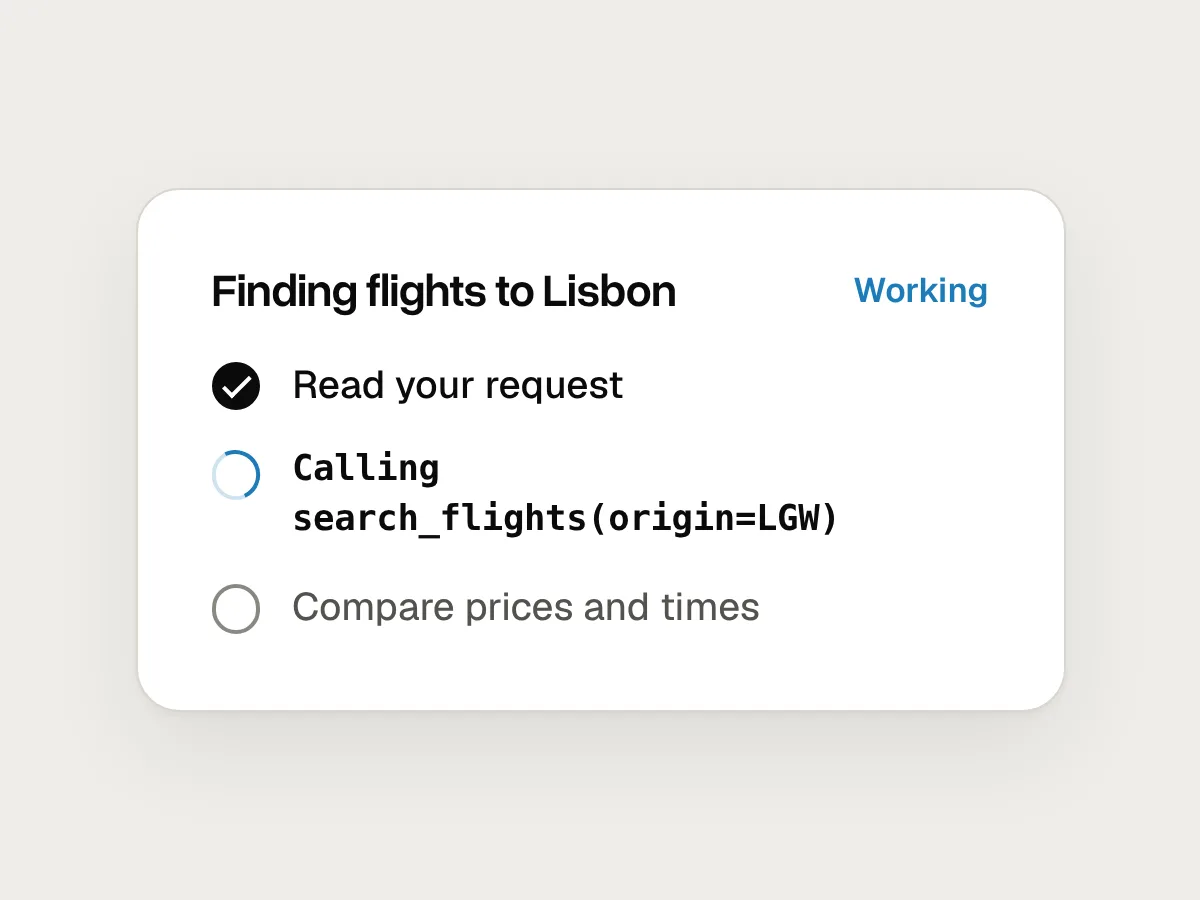
Don’t
Steps named in the system’s terms: “Calling search_flights()”.
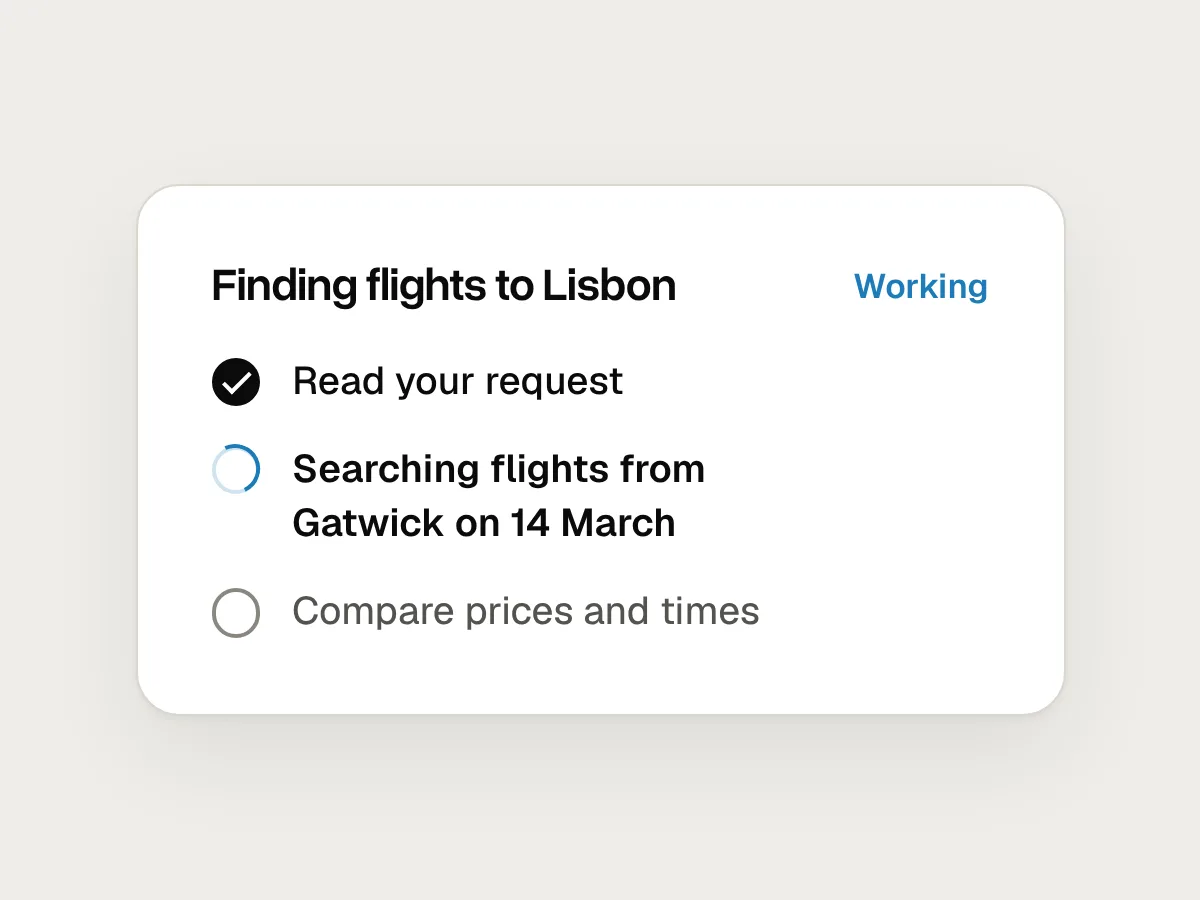
Do
Name each step by what it does for the person: “Searching flights from Gatwick”.
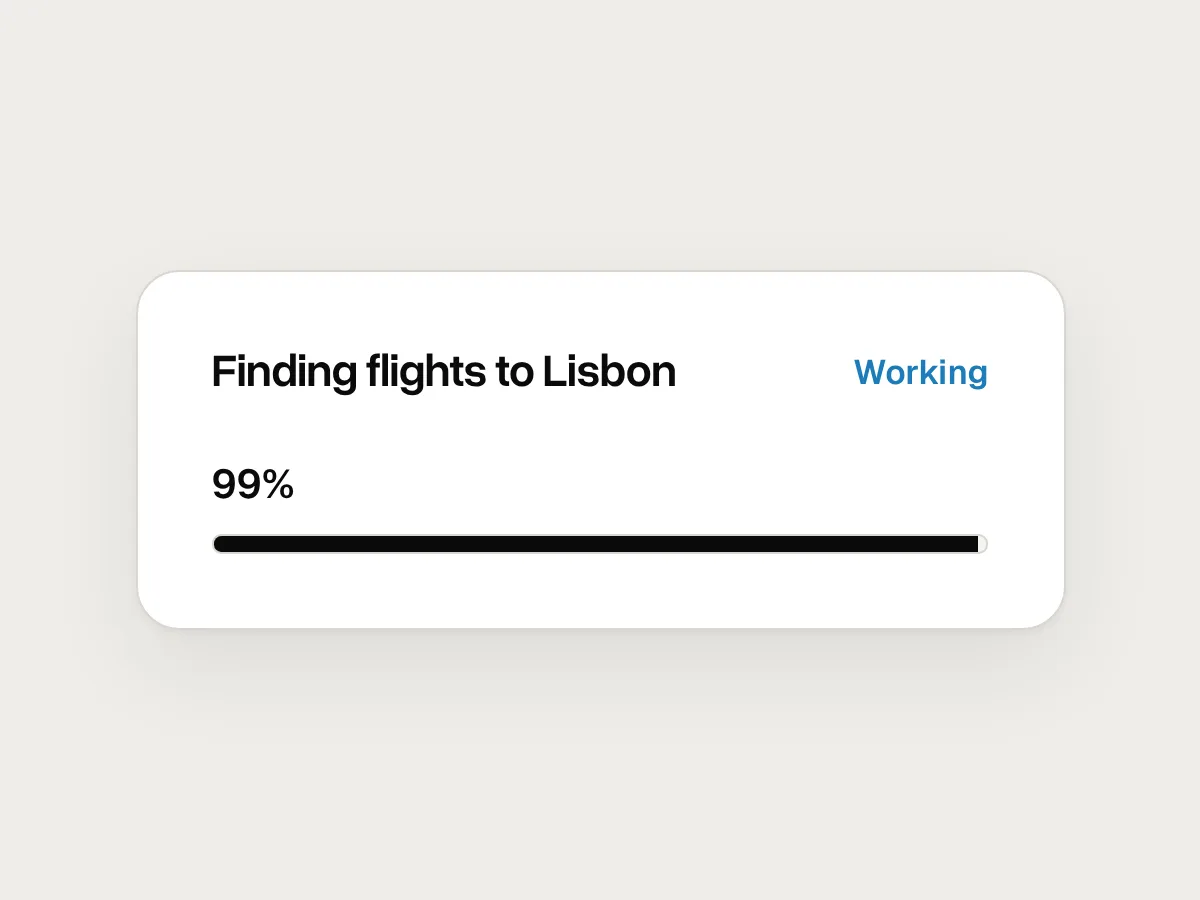
Don’t
A percentage bar the agent can’t know, stuck at 99%.
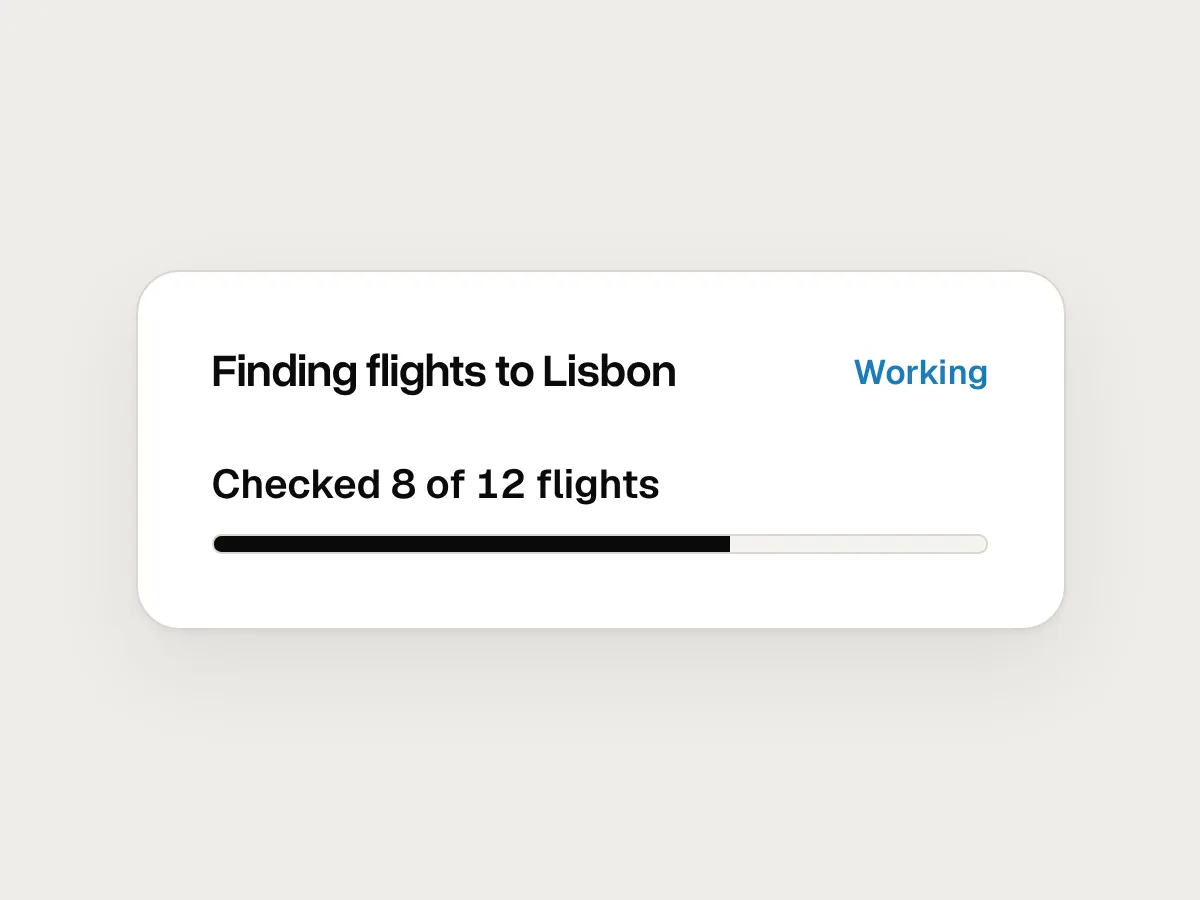
Do
Count real things: “Checked 8 of 12 flights.”
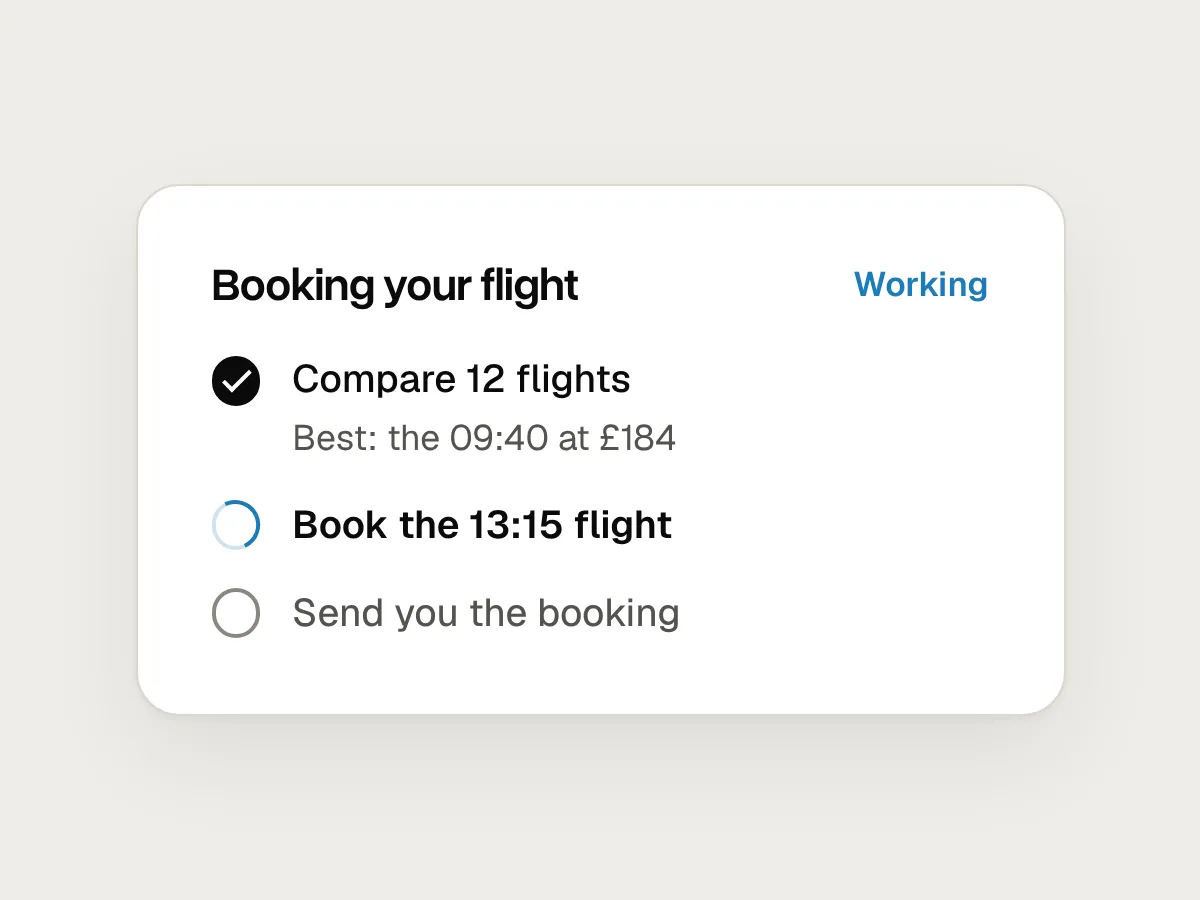
Don’t
Changing the plan without saying so.
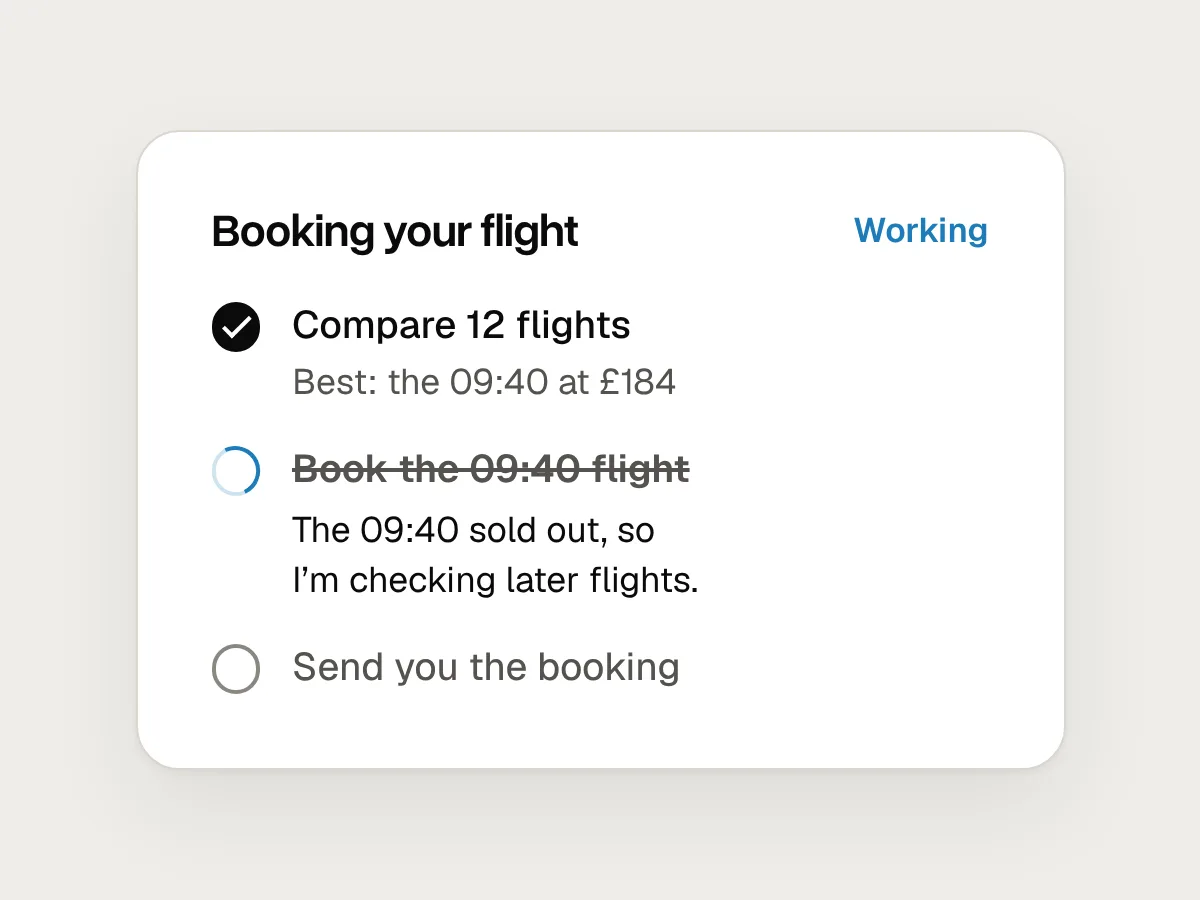
Do
Say when the plan changes, and why.
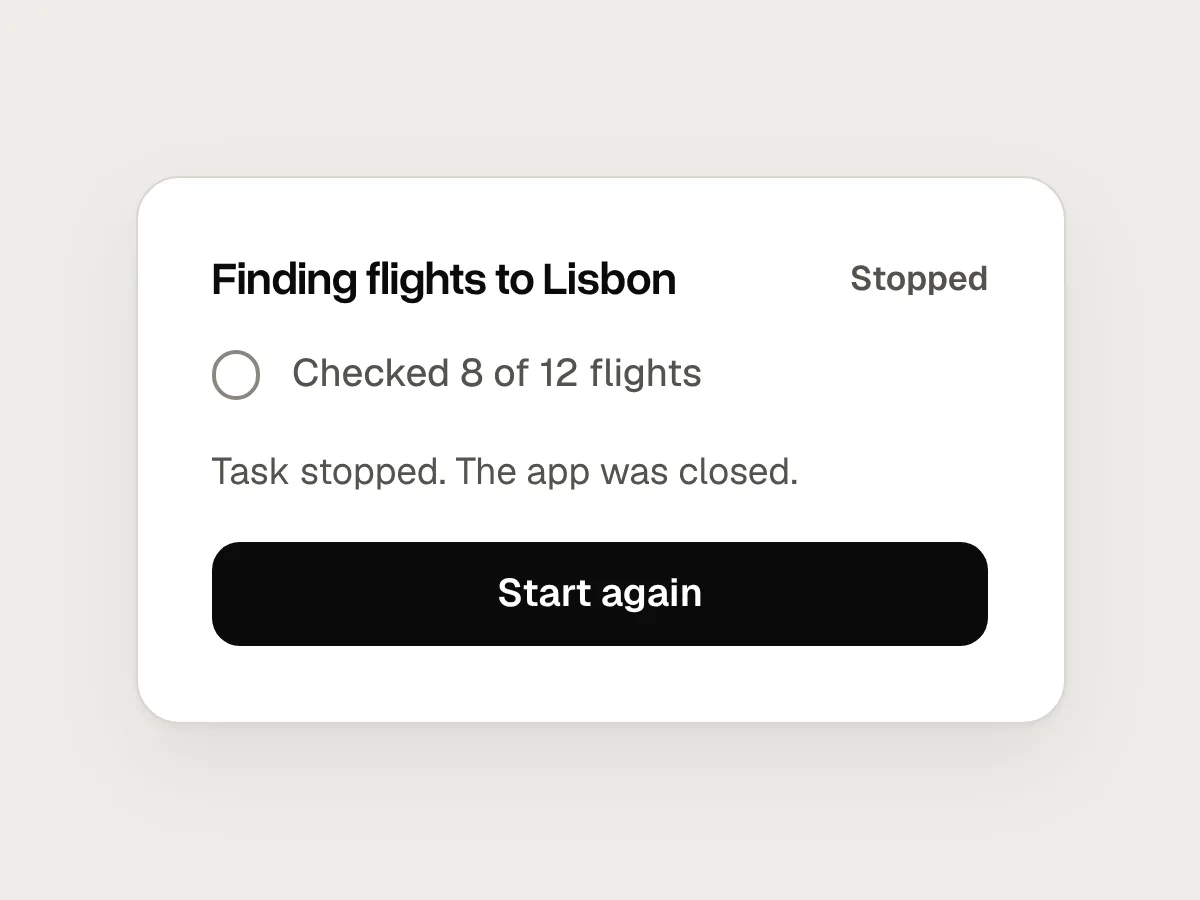
Don’t
The task stops when the app is closed.
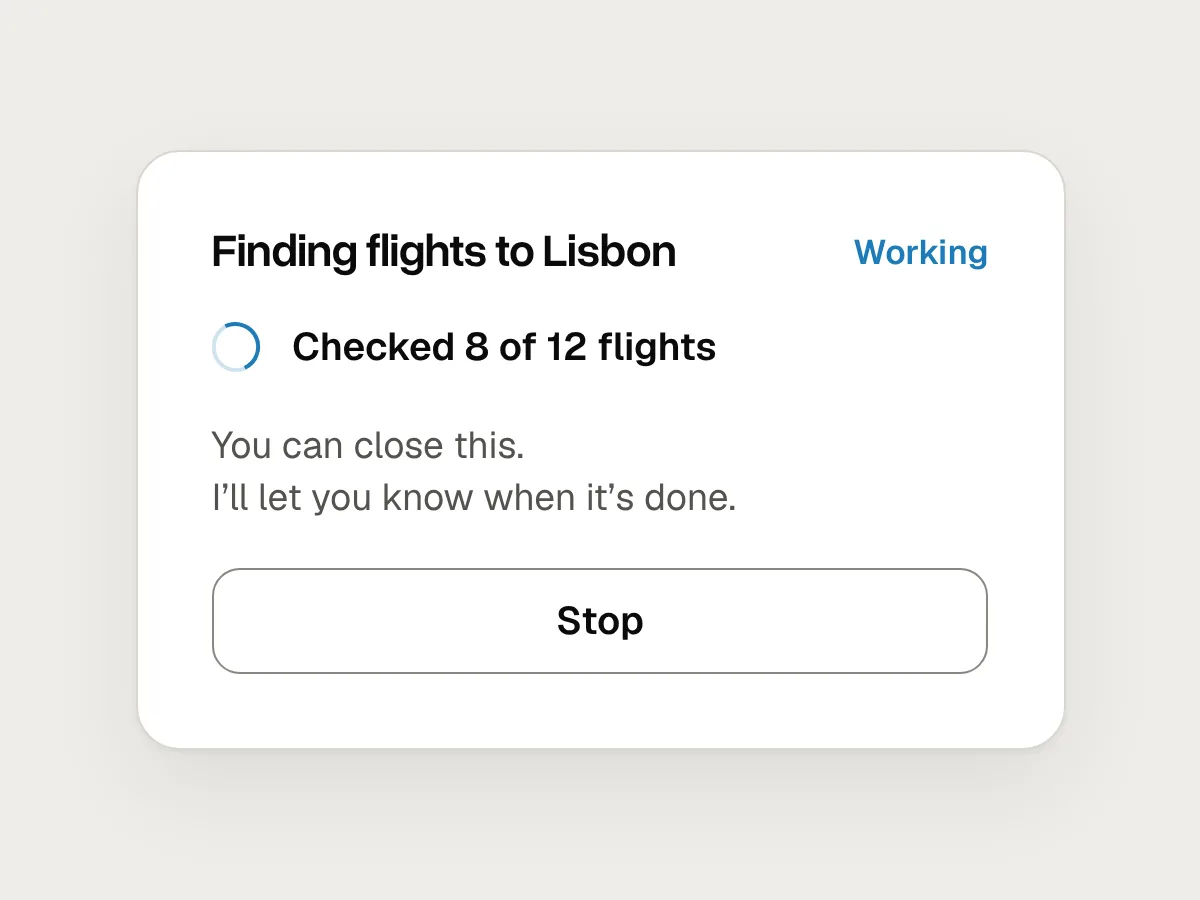
Do
Keep it running, and tell people it’s safe to leave.
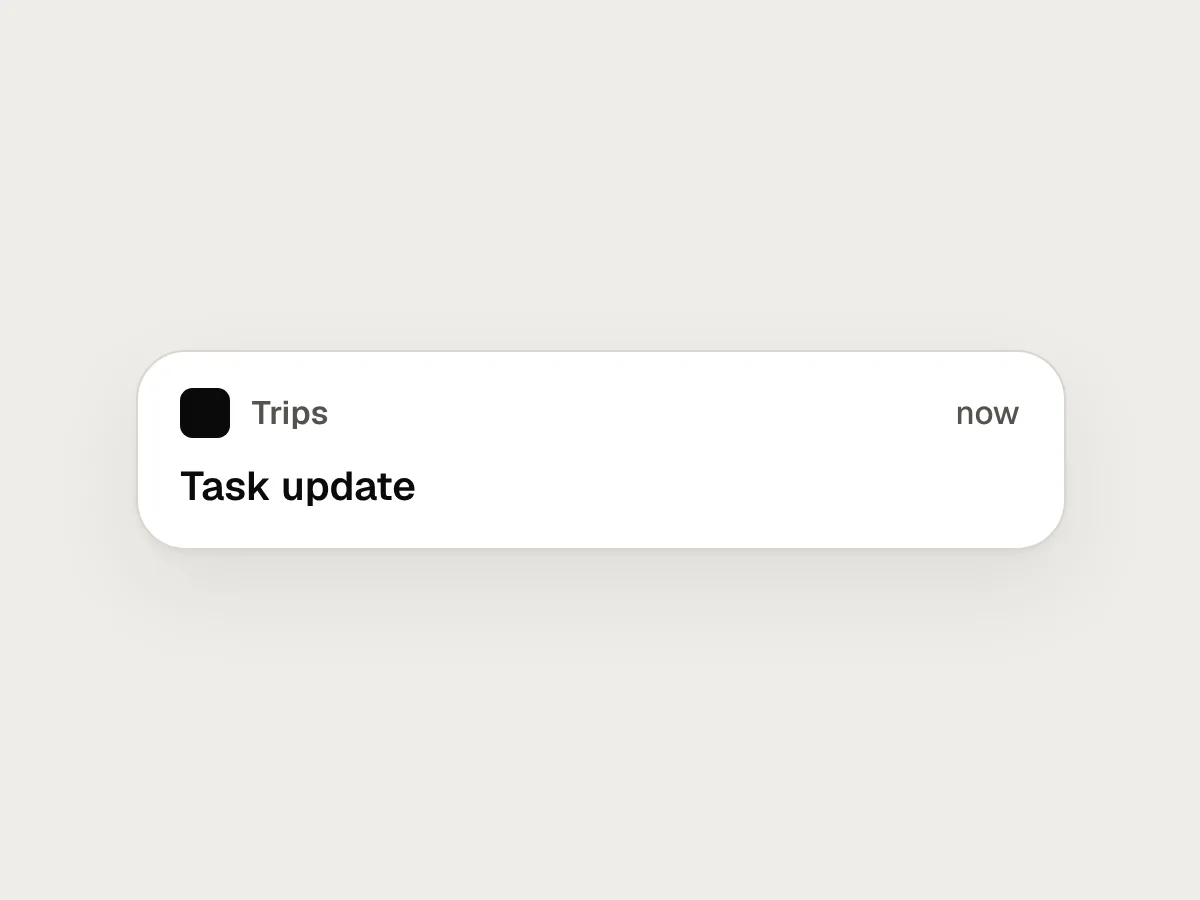
Don’t
A question waiting on a screen nobody is looking at.
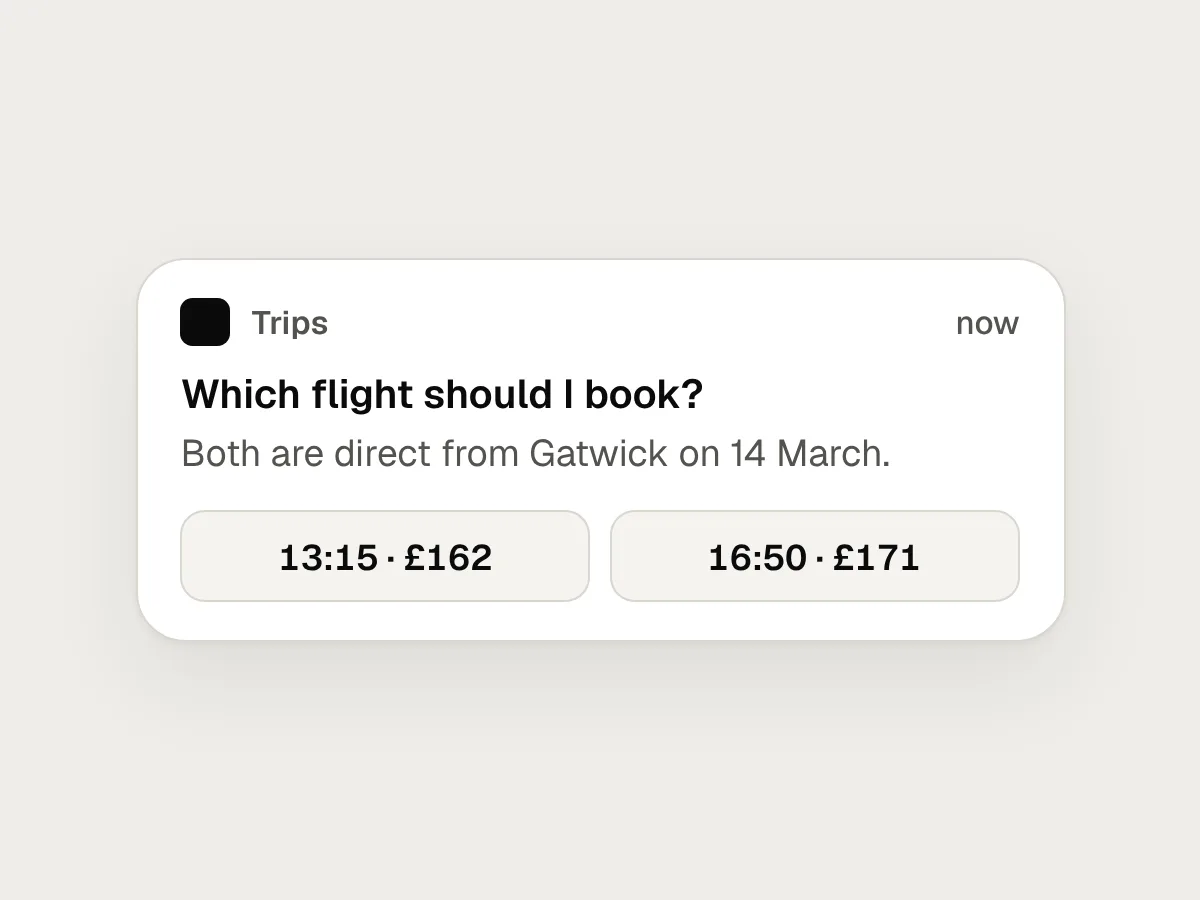
Do
A notification that asks the question, with the answers in it.
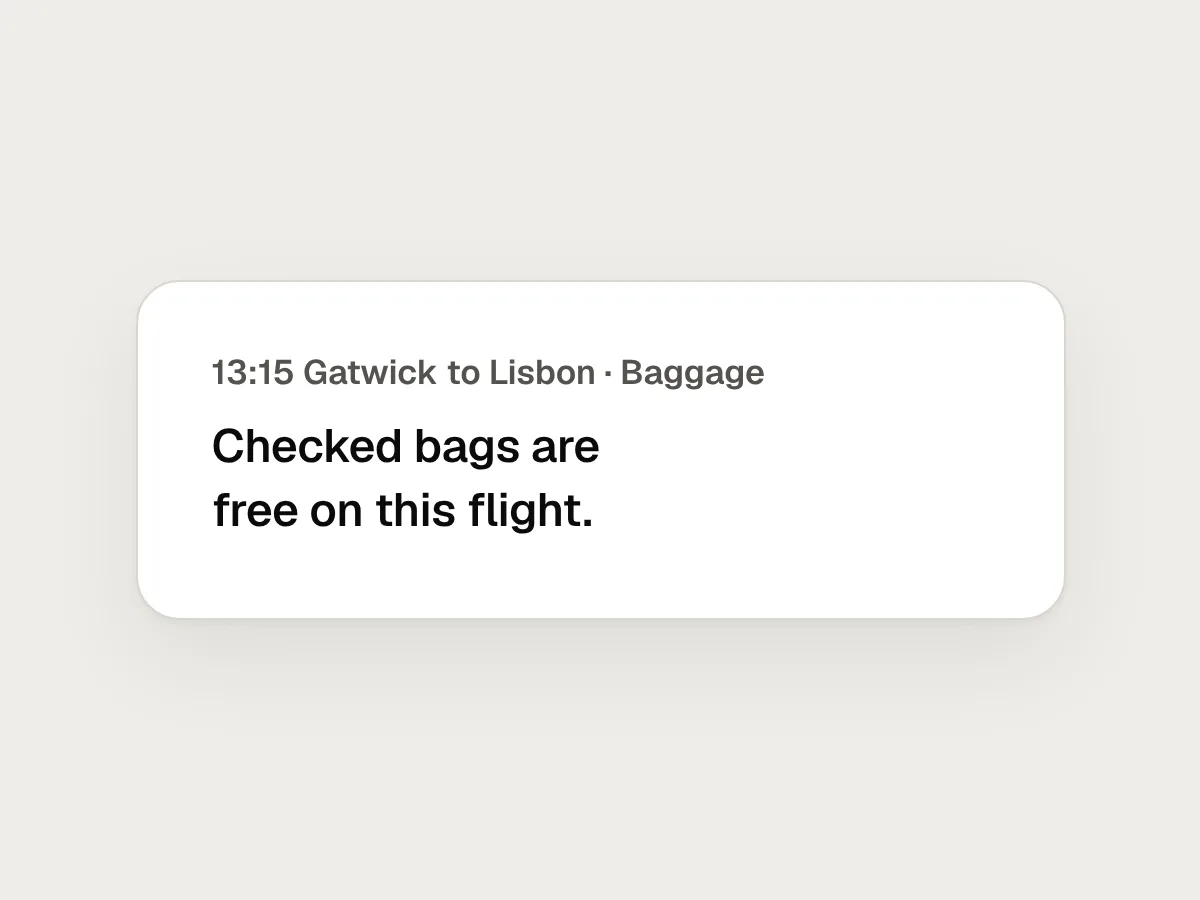
Don’t
Results with no way to see where they came from.
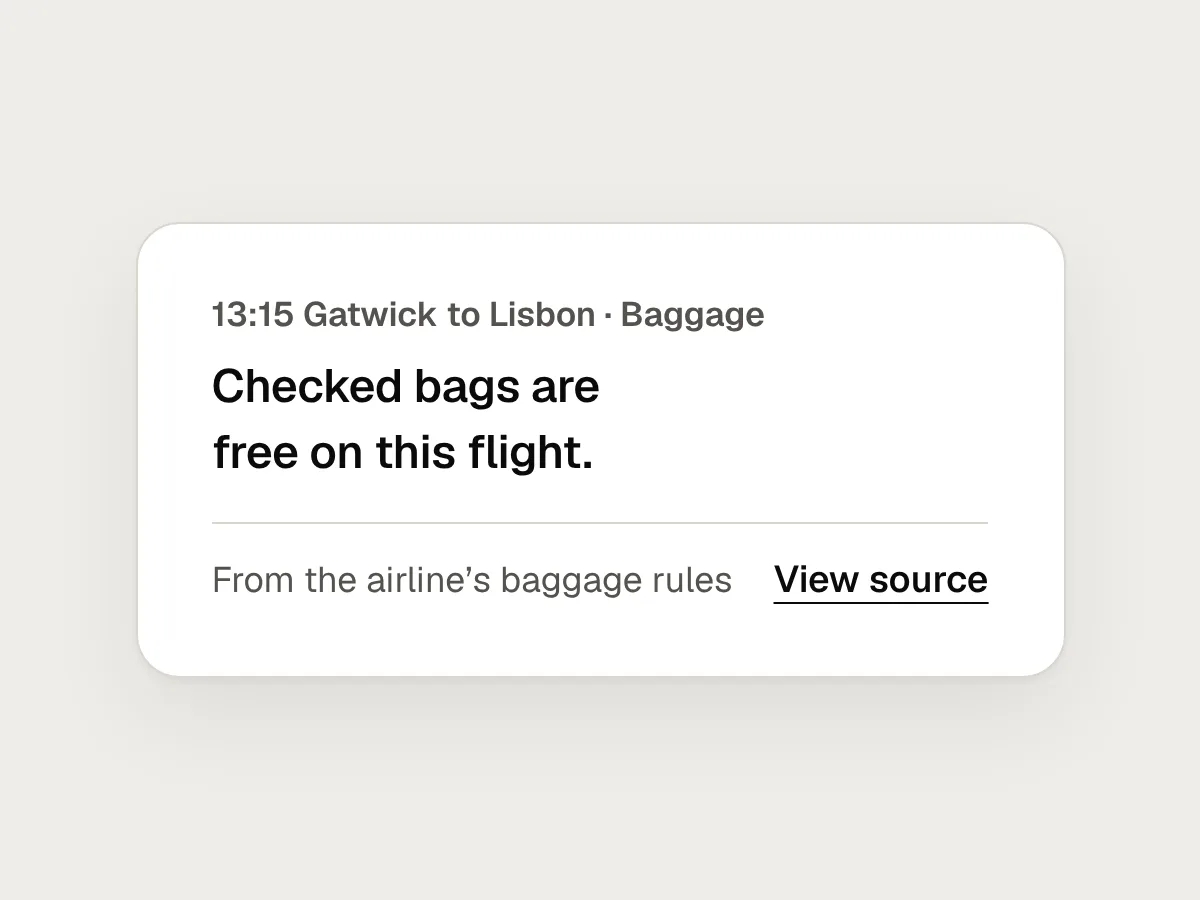
Do
Link each result to its source.
Before you ship: a checklist
Questions people ask
Should an agent show its thinking as it works?
Not as the main view. A stream of the model’s reasoning is long and hard to scan. Show the plan, the current step and each result, and keep the detailed activity one tap away for people who want it.
How do I show progress when I don’t know how long the task will take?
Count what you can: steps finished, pages read, items checked. Say what it is doing now. Avoid a percentage or a time estimate unless you can actually measure it.
Should an agent keep working when the app is closed?
For tasks longer than a minute or so, yes, if it can do so safely. Say so clearly, notify people when it finishes or needs them, and make sure anything with consequences still waits for their answer.
Resources
- Visibility of system status · Nielsen Norman Group
The first usability heuristic, and why clear status builds trust.
- Response times: the 3 important limits · Nielsen Norman Group
The 1 and 10 second limits behind the advice on waiting.
- Our framework for developing safe and trustworthy agents · Anthropic
Why Claude shows its plan as a to-do list people can adjust.
- Understanding SC 4.1.3: Status messages · W3C
How to announce status changes without moving focus.
- Explainability + Trust · Google People + AI Guidebook
How much to explain about an AI system, and when.
If this was useful, share it with someone it would help.