Best practice
When an AI agent should ask first: confirmations and permissions
Which actions an AI agent should ask about, what a good confirmation says, and how to avoid approval fatigue so people still read what they approve.
· 7 min read · Musab Alfawal
On this page
Every AI agent has to decide when to stop and ask. Ask too little and it sends the wrong email to a whole team, or pays for something nobody wanted. Ask too much and people tap Allow without reading, which protects them no better than not asking at all.
Getting this right is mostly a design job, not a technical one. It means deciding which actions need a person, writing a confirmation that can be judged in a few seconds, and giving people permission settings they can understand.
Sort every action by what’s at stake
Start by listing everything the agent can do, then sort each action into one of three groups.
Looking around: searching, reading a page, opening a file, checking a calendar. Nothing changes, so let it happen, and show it in the activity list so people can see what was read.
Changes that are easy to undo: drafting an email, moving a file, adding an event to the person’s own calendar. Let these run too, and make undo easy to find.
Actions with consequences: paying, deleting, sending or posting as the person, inviting other people, sharing data with someone new, accepting terms. Stop and ask, unless the person has said otherwise.
The same app can sit in different groups. Drafting an email is a change that is easy to undo. Sending it is an action with consequences. Write the rules about the action, not the app.
What a good confirmation says
A confirmation is read in a hurry, often by someone who was doing something else. It has to be understood in a few seconds, without opening anything.
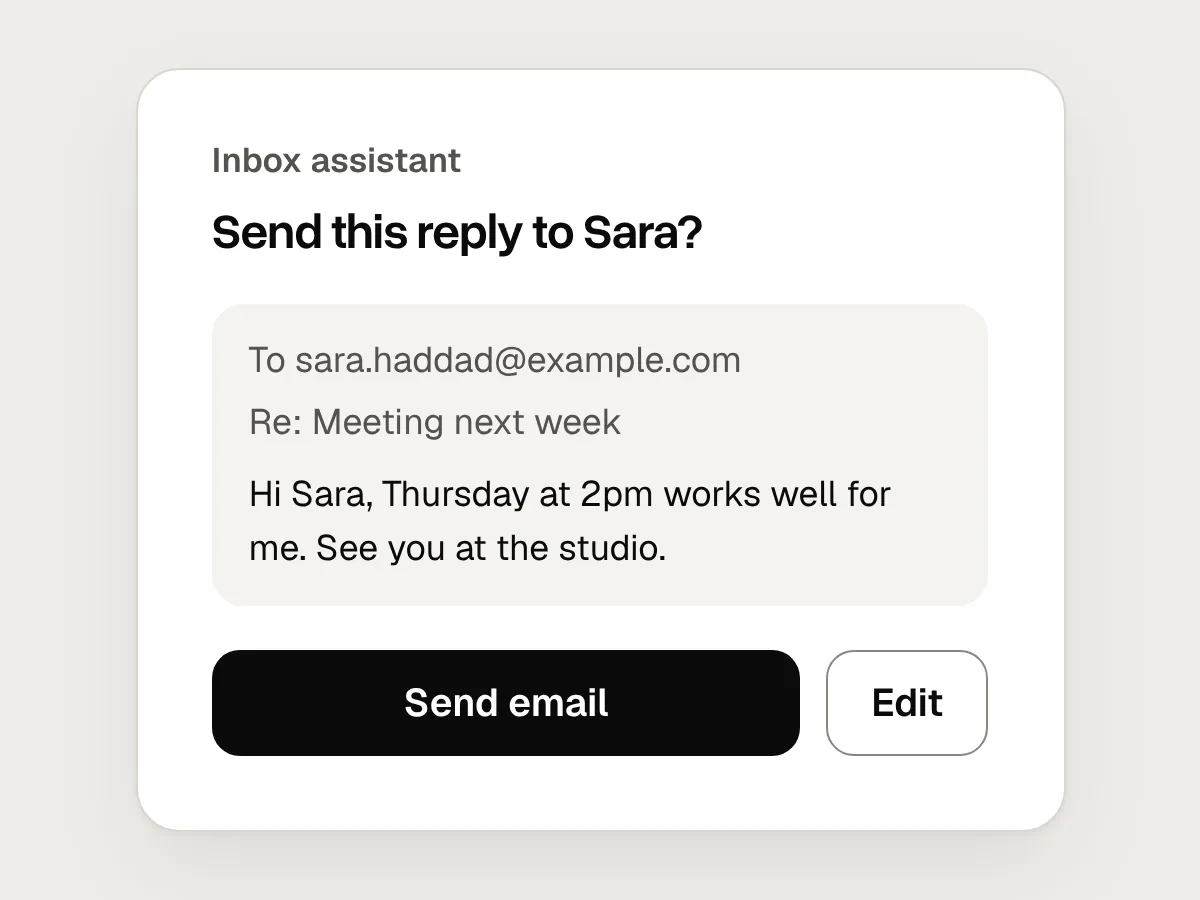
It should say what will happen, as a verb: send, pay, delete, invite. It should say to what: the exact email, the exact files, the exact amount. It should say who it affects: the recipients, the shop, the people invited. And it should say whether the action can be undone, and for how long.
Make the buttons say the action again. “Send email” and “Pay £184” can be understood without reading the question. “Allow” and “OK” can’t. Offer Edit as well as Cancel, so a wrong word doesn’t mean throwing the task away.
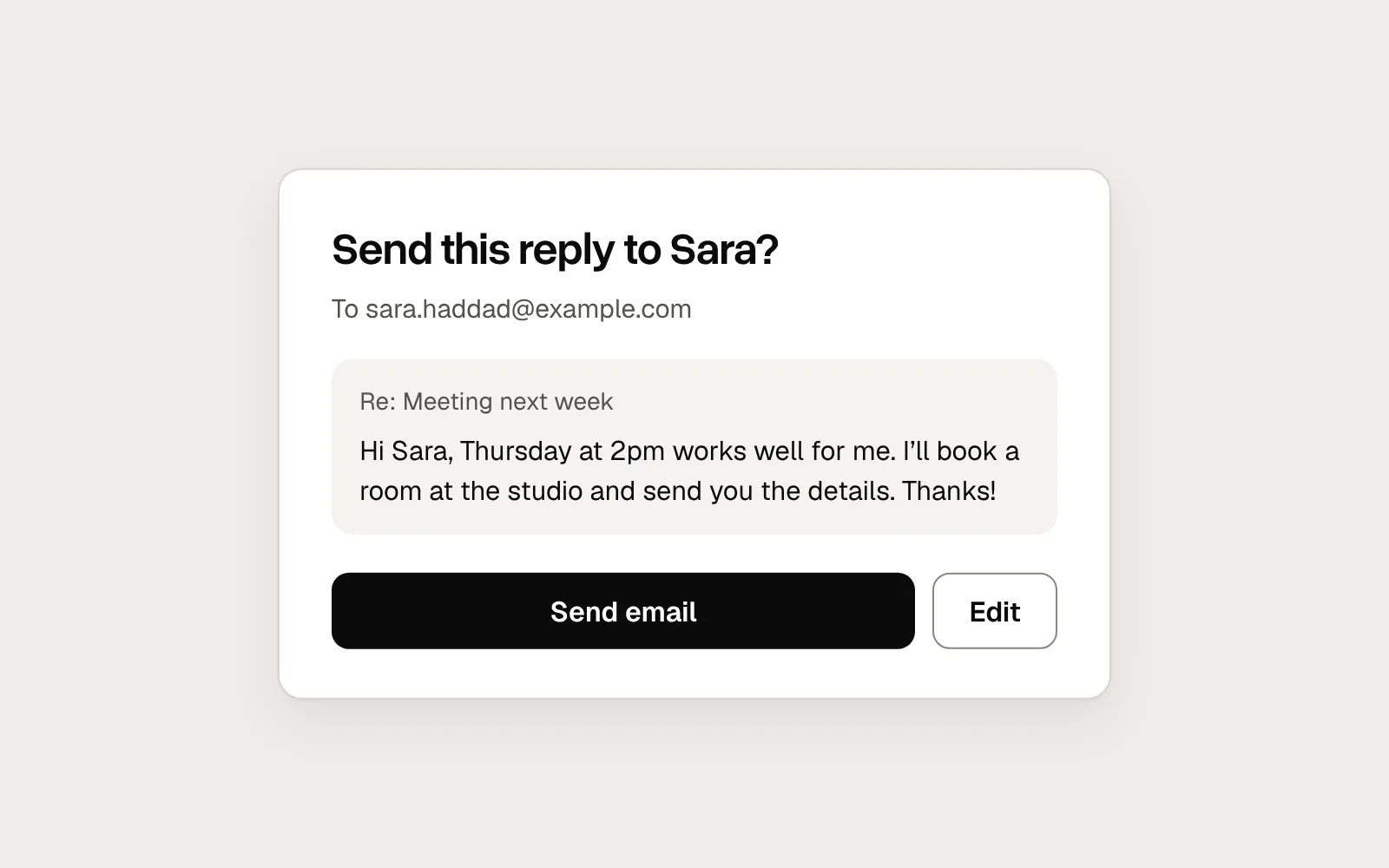
Here is the same request written two ways.
Before
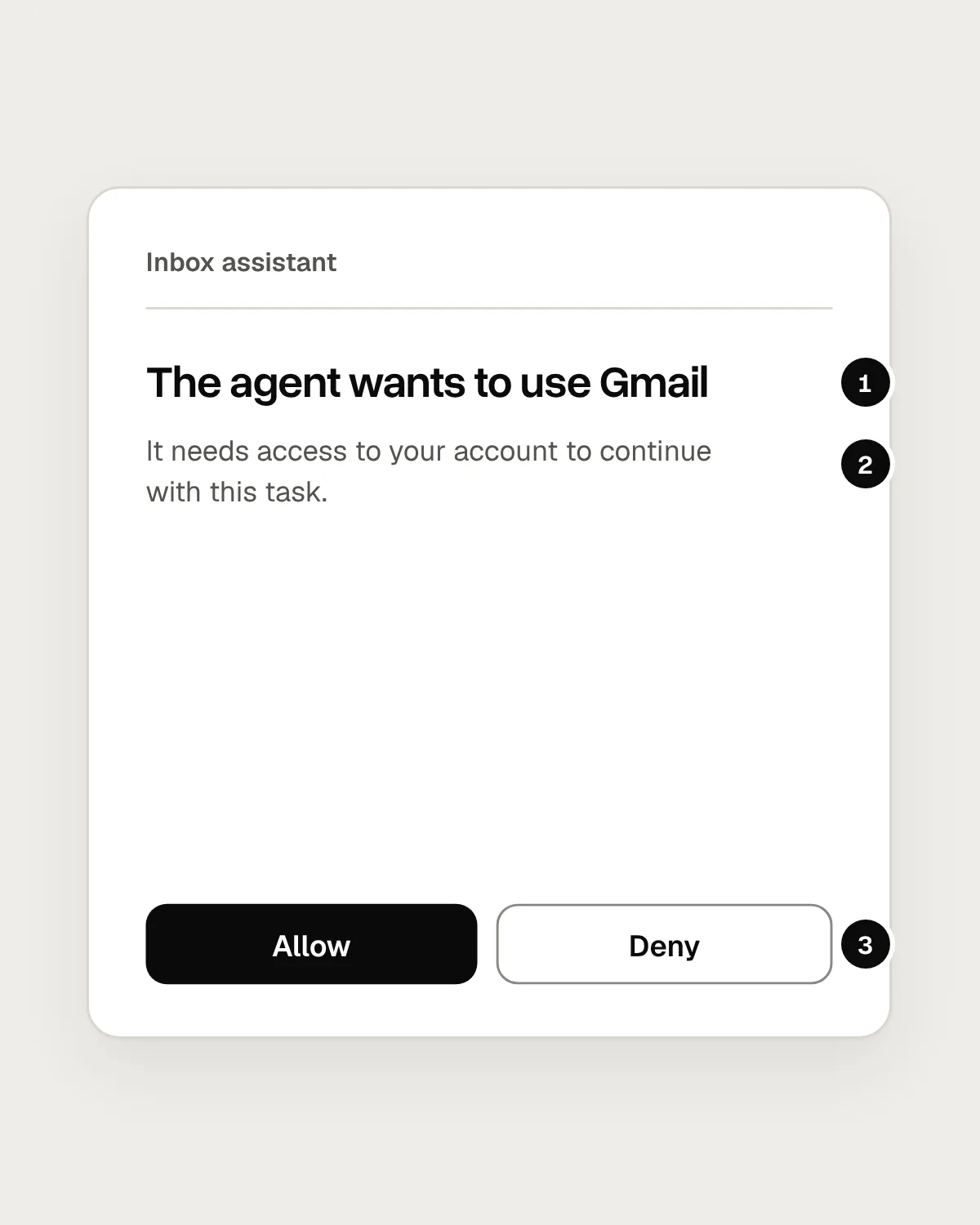
- It names the app, not the action. Using Gmail could mean reading, sending or deleting.
- Nothing says what will be sent, or to whom.
- “Allow” and “Deny” could answer any question.
After
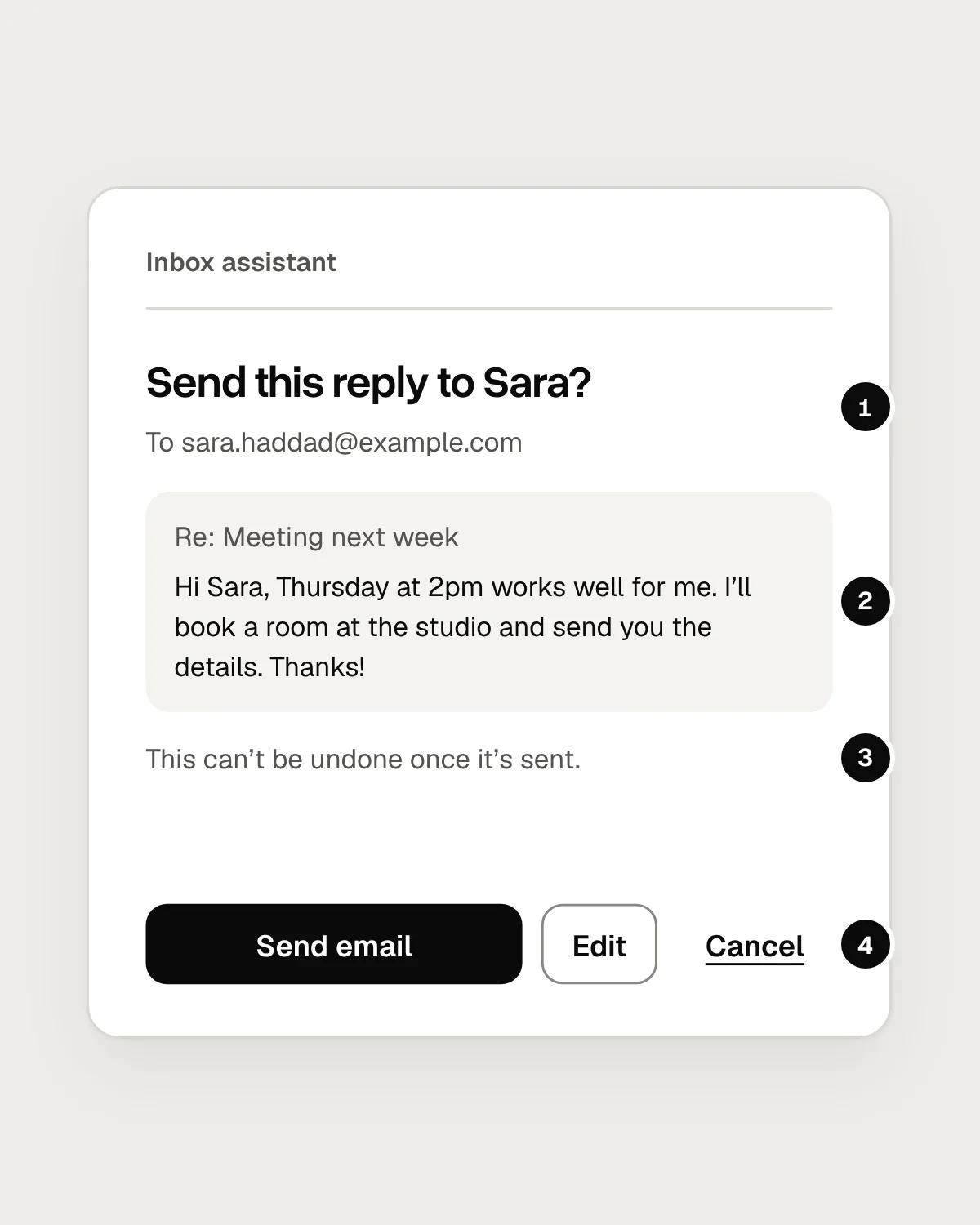
- The action and the person it affects, in the heading.
- The exact message that will go out.
- Whether it can be undone, before it happens.
- Buttons that name the action, and Edit for a small fix.
Show the real thing, not a summary of it
The text in a confirmation should come from the action itself, not from the agent’s description of it. If the agent says it is “sending a short reply to Sara”, the person can only check what the agent believes. If it shows the actual message and the actual address, they can check what will really happen.
This matters for safety, too. Agents read web pages, emails and documents, and some of that text is written to trick them, an attack known as prompt injection. A hidden line on a web page can tell an agent to send data somewhere it shouldn’t. A confirmation that shows exactly what will be sent, and where, is one of the few places a person can catch it.
Avoid approval fatigue
When people are asked to approve the same kind of thing again and again, they stop reading. Nielsen Norman Group warns about this with ordinary confirmation dialogs, and an agent can produce dozens of them in a few minutes. A few patterns keep the number down.
Ask once for a group. “Delete these 14 files?”, with the list and a way to untick any of them, is one decision. Fourteen dialogs are fourteen chances to stop reading.
Ask at the start. Collect what the agent will need to know before it begins: which card, which address, whether it may book without asking under a set price. Then the rest of the task can run without the person.
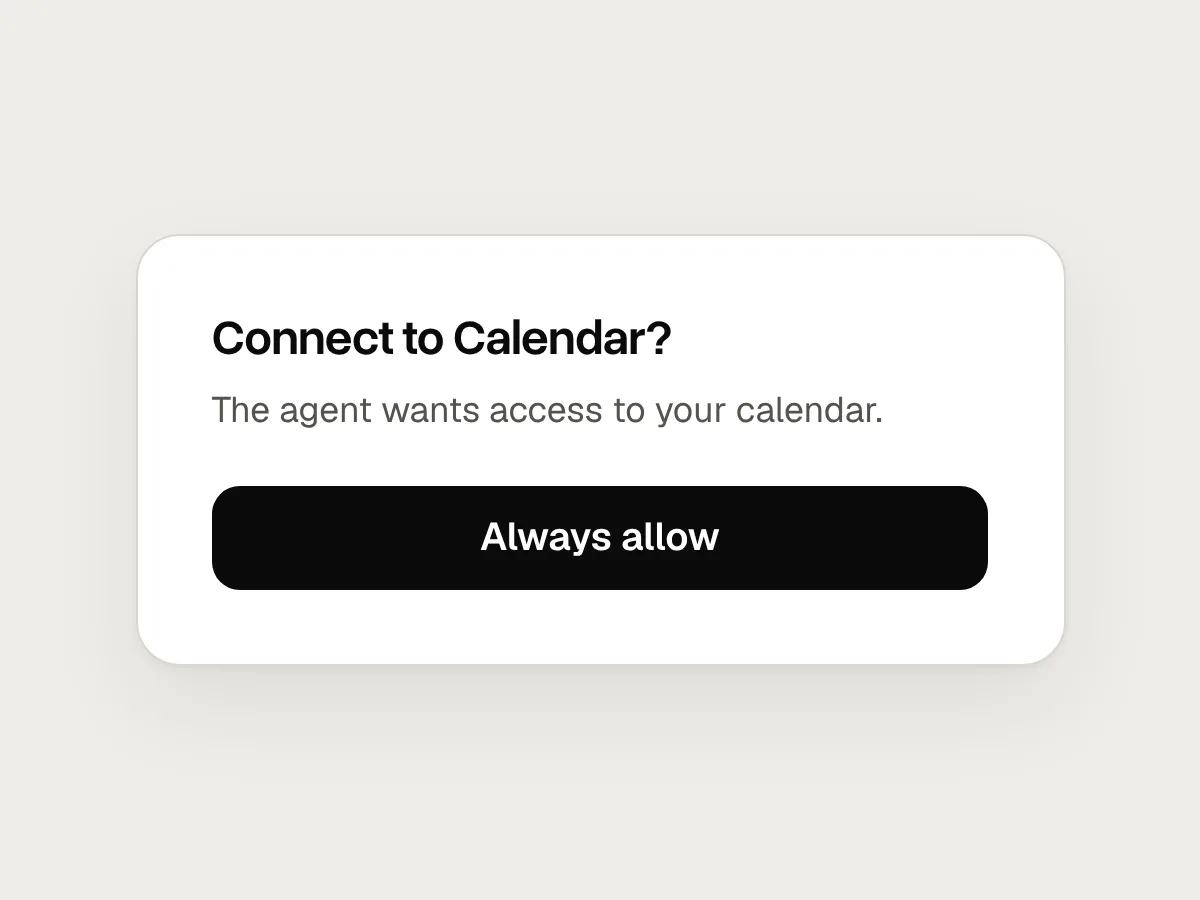
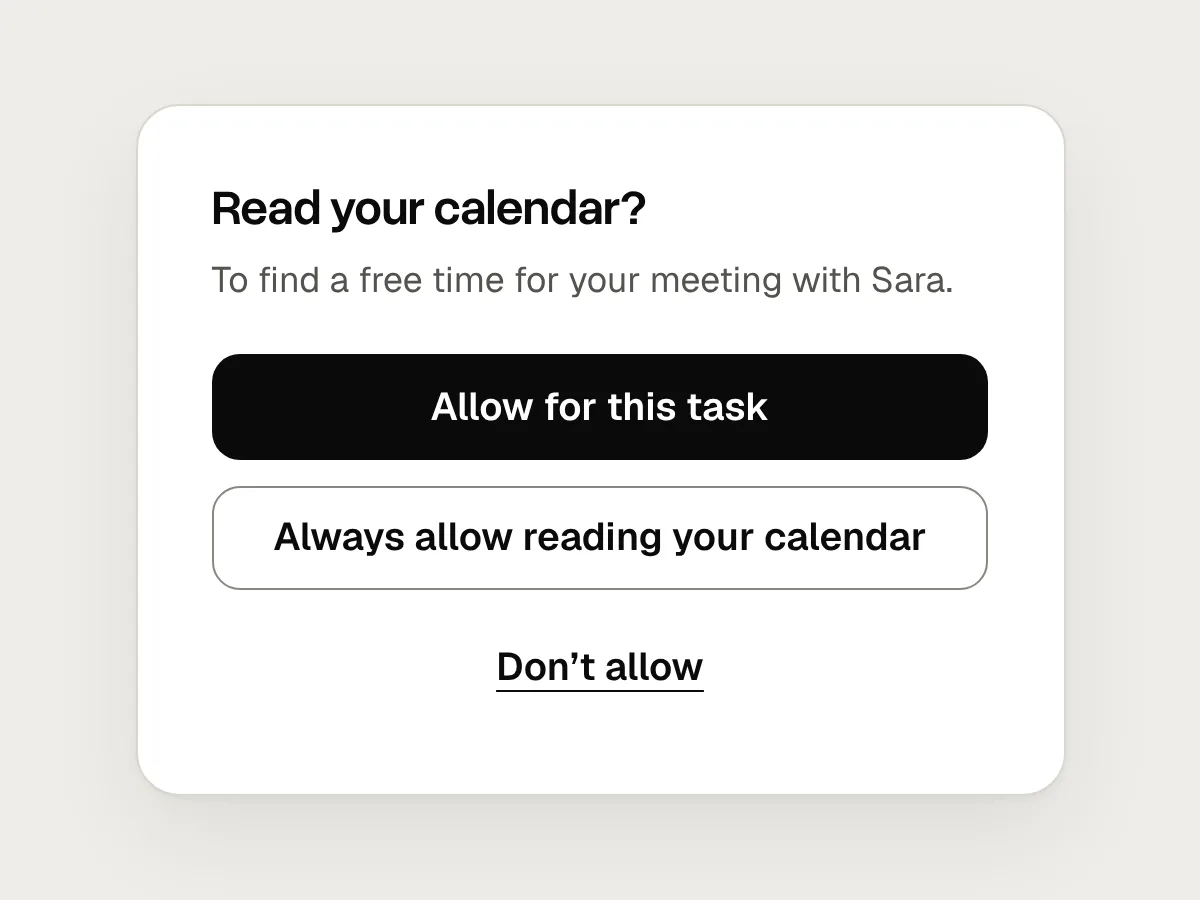
Let people allow a kind of action for a while. “Allow for this task” covers the next few minutes. “Always allow” covers every task from now on. Offer both, and say exactly what each one covers: “Always allow reading your calendar” is clear, “Always allow Calendar” is not.
Here is how that looks during a task: the reading runs on its own, and the one action that speaks for the person stops and asks.
Permissions people can understand and change
Give people one place to see what the agent is allowed to do, grouped by what it does rather than by app or technical name. For each kind of action, offer three choices: allow, ask first, and never. Set anything with consequences to ask first by default.
Let people change their minds as easily as they gave permission, and keep a record of what the agent did with it. If someone allowed it to read their calendar, they should be able to see which events it read, and when.
Here is how to set permissions for a new agent feature.
1. List every action the agent can take
Write each one as a verb and an object: read emails, send email, pay, delete files. Include everything each tool can do, not only what you plan to use.
2. Sort each action by what’s at stake
Looking around, changes that are easy to undo, and actions with consequences. When in doubt, put it in the more serious group.
3. Set the default for each group
Let looking around and easily undone changes run. Make everything with consequences ask first until the person says otherwise.
4. Write each confirmation
Name the action, show exactly what will happen, and say who it affects and whether it can be undone. Make the buttons repeat the verb.
5. Test it with people
Give them a realistic task and watch whether they read each confirmation or tap straight through it. If they tap through, the agent is asking too often or saying too little.
Mistakes, and what to do instead
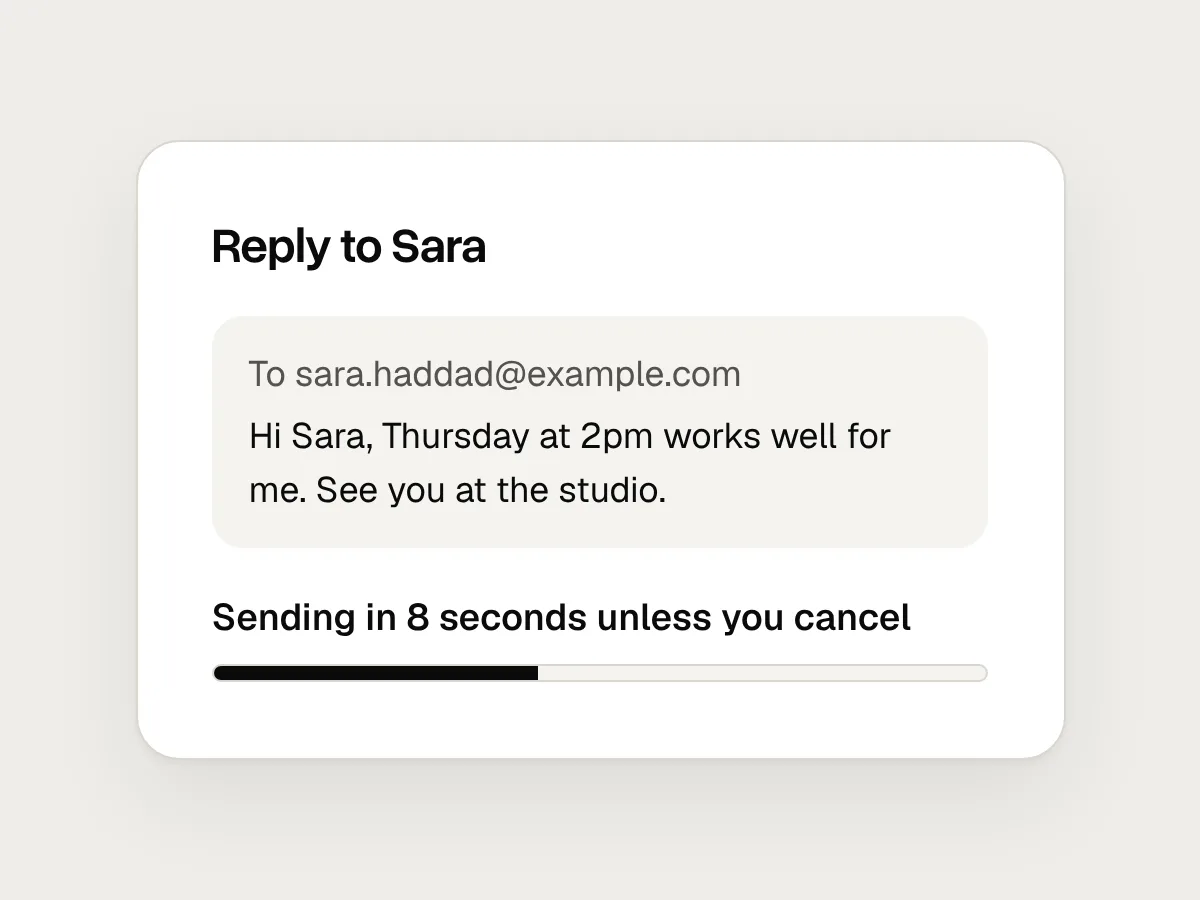
Don’t
A countdown that approves on its own: “Sending in 10 seconds…”
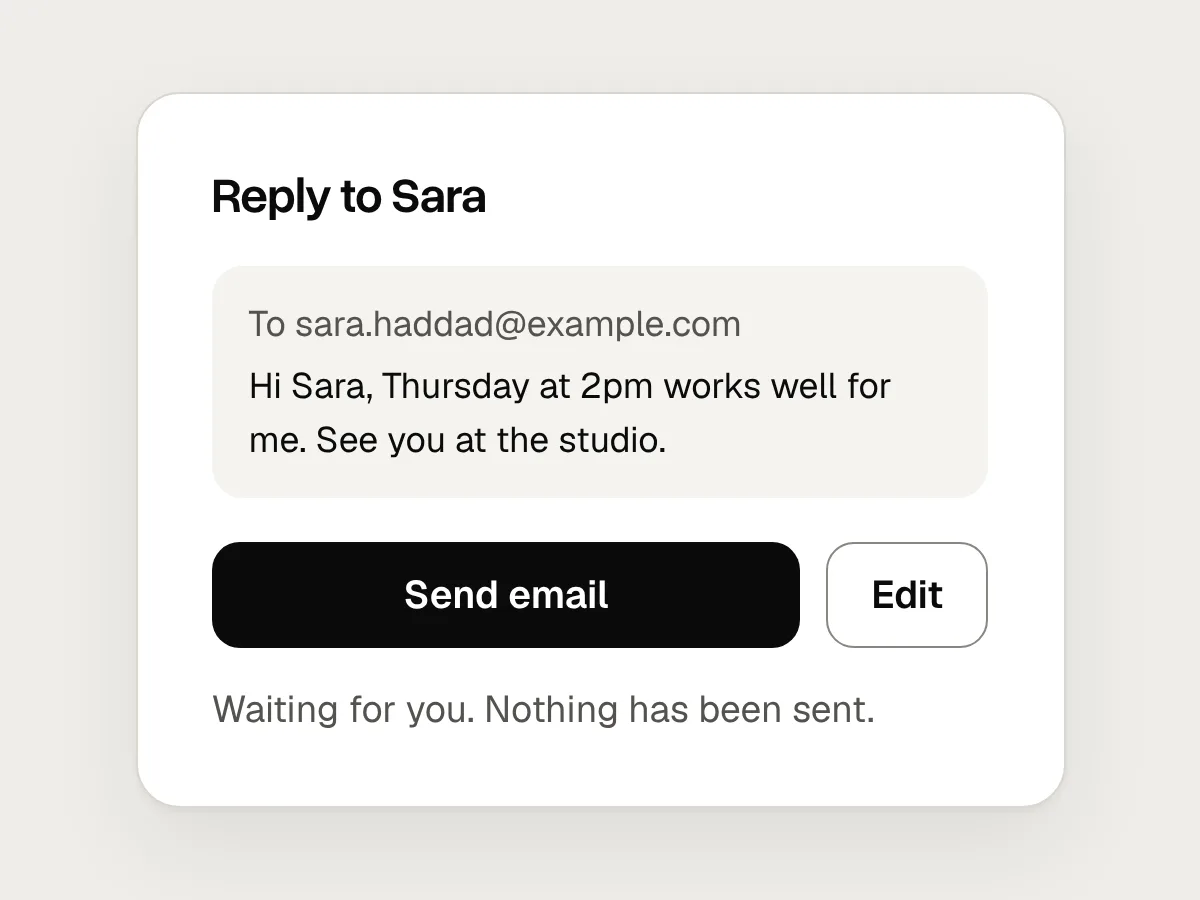
Do
Wait for an answer. Until then, pause the task and say what it’s waiting for.
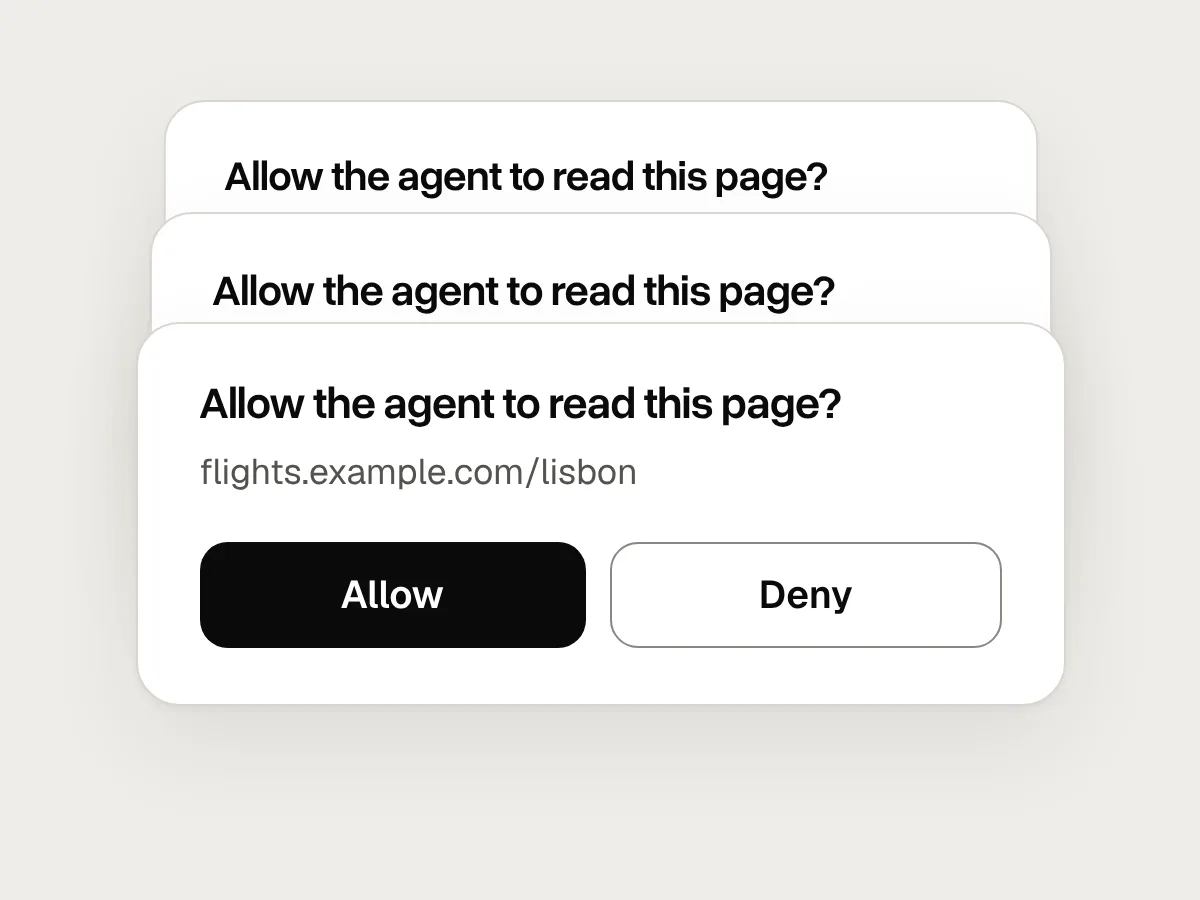
Don’t
Asking before every step, even reading a page.

Do
Let looking around and easily undone changes run, and ask only before what’s at stake.
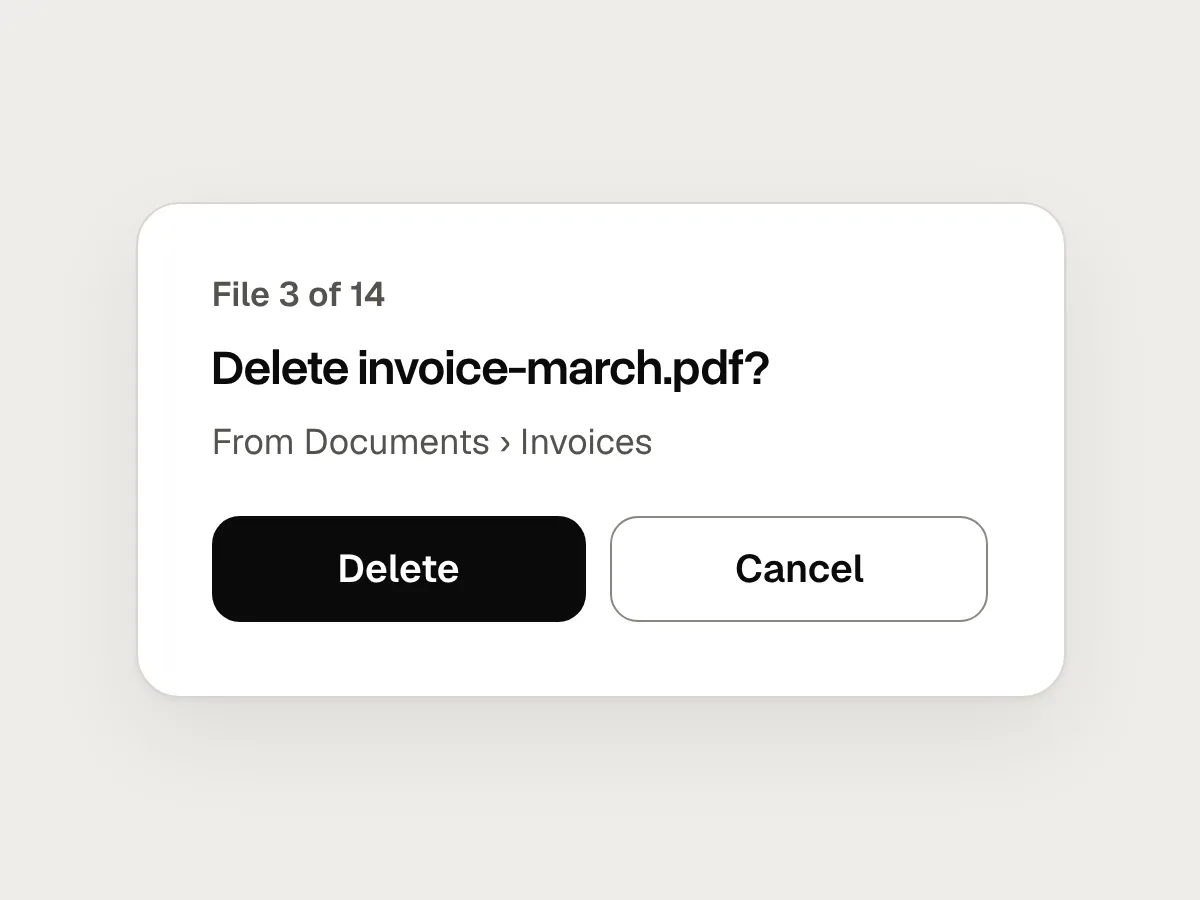
Don’t
Fourteen dialogs for fourteen files.
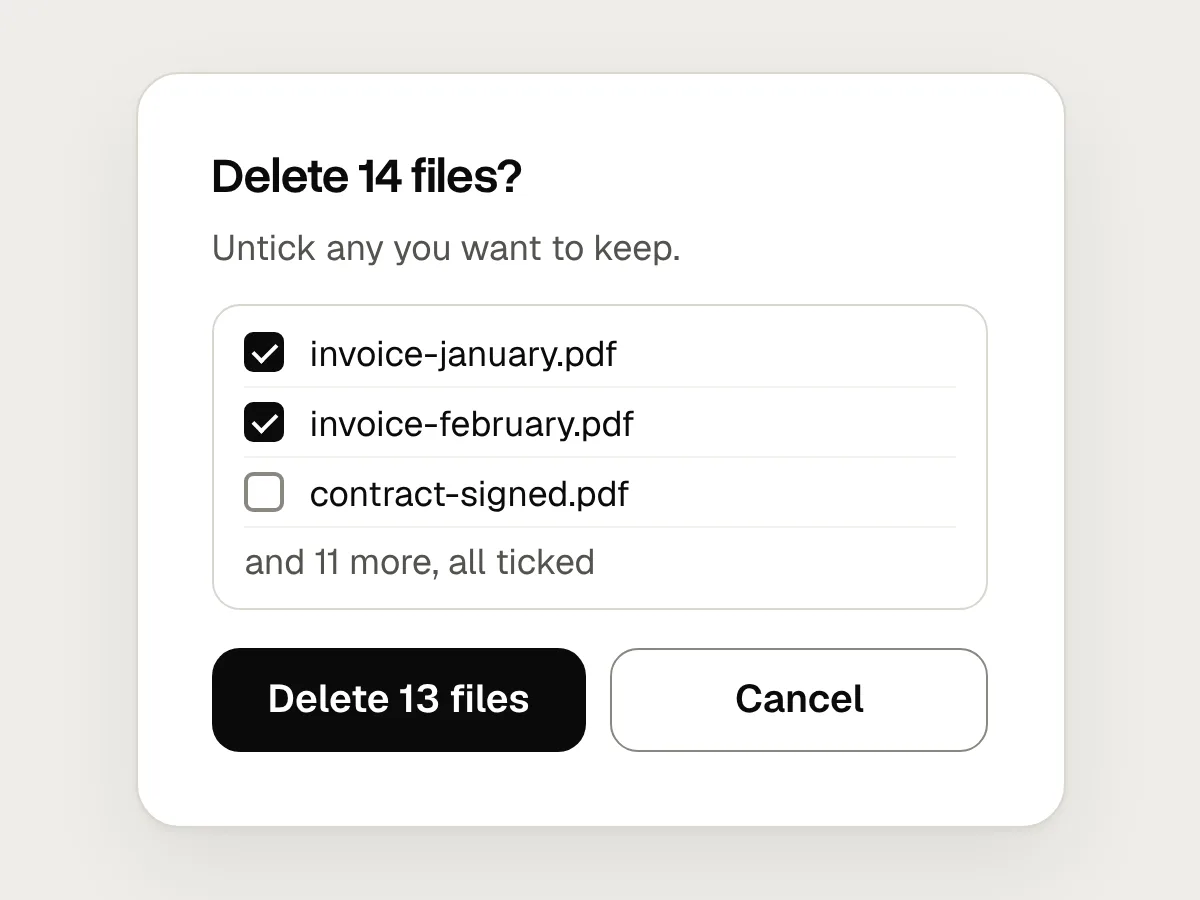
Do
One request that lists all fourteen, with a way to untick any of them.
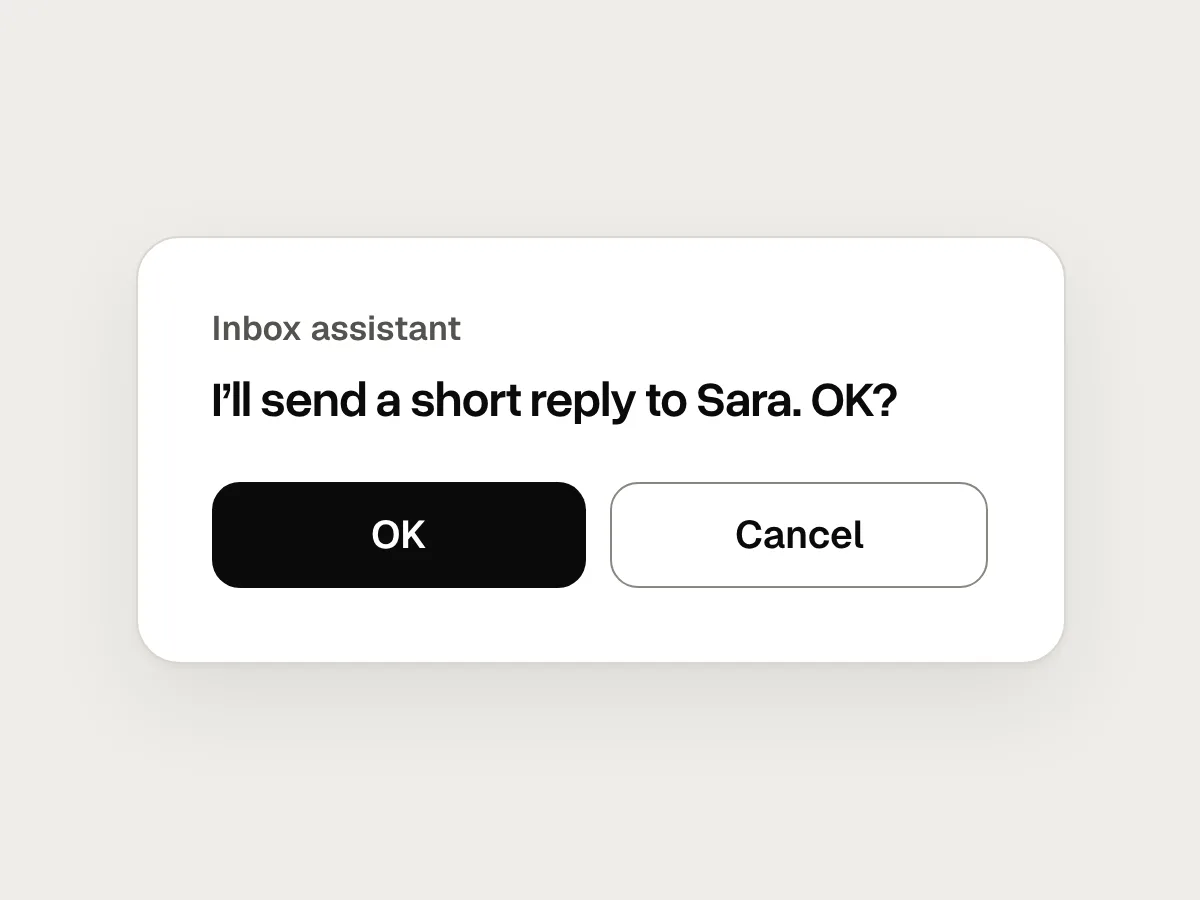
Don’t
The agent’s own summary instead of the real thing: “Sending a short reply to Sara.”
Do
Show the exact message and the exact address it will go to.
Don’t
Permissions that, once given, last for ever.
Do
Offer “Allow for this task” as well as “Always allow”, and say what each one covers.

Don’t
Only two answers: approve, or cancel the whole task.

Do
Offer Edit and Skip this step, so one no doesn’t throw away the rest.
Before you ship: a checklist
Questions people ask
What is approval fatigue?
What happens when people are asked to approve things so often that they stop reading the requests. Each approval then protects them less, until the one that mattered is approved along with the rest.
Should an agent ever act without asking?
Yes, when it is looking around or making changes that are easy to undo. Asking about those trains people to stop reading. Save the questions for actions that cost money, can’t be undone or speak for the person.
Can undo replace a confirmation?
Sometimes. For an action only the person sees, such as moving their own file, a clear undo is often better than a question. For anything other people see or receive, ask first, because undo can’t take back what someone has already read.
What does “human in the loop” mean?
That a person reviews or approves certain steps before the agent carries on. In practice it comes down to the decisions in this guide: which steps, how they are shown, and how easy they are to judge.
Resources
- Confirmation dialogs can prevent user errors, if not overused · Nielsen Norman Group
When a confirmation helps, and why too many of them stop working.
- Our framework for developing safe and trustworthy agents · Anthropic
How Claude asks before changing things, and lets people allow routine tasks.
- LLM01: Prompt injection · OWASP
What prompt injection is, and why a person should approve risky actions.
- User control and freedom · Nielsen Norman Group
Why clear exits and undo matter, with examples.
- Guidelines for Human-AI Interaction · Microsoft Research
Tested guidelines for giving people control over what an AI system does.
If this was useful, share it with someone it would help.